How to make the switch from Figma to Penpot
There are many reasons designers or developers might migrate to Penpot. Penpot’s browser-based software is free and open-source, so you'll always own your work.

There are many reasons teams of designers and developers might migrate to Penpot. For organizations moving a full design system, our enterprise migration guide covers the process step by step.
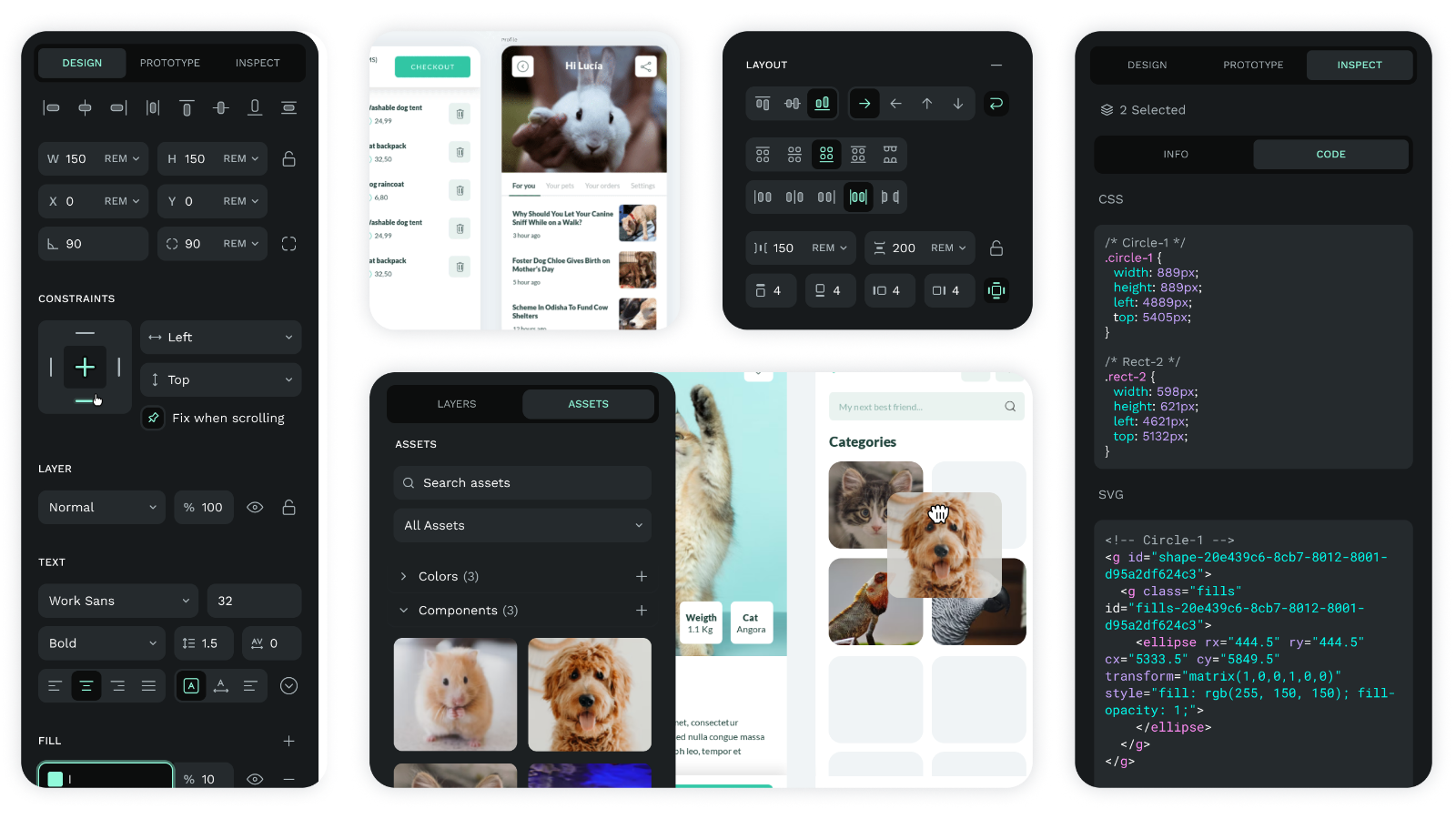
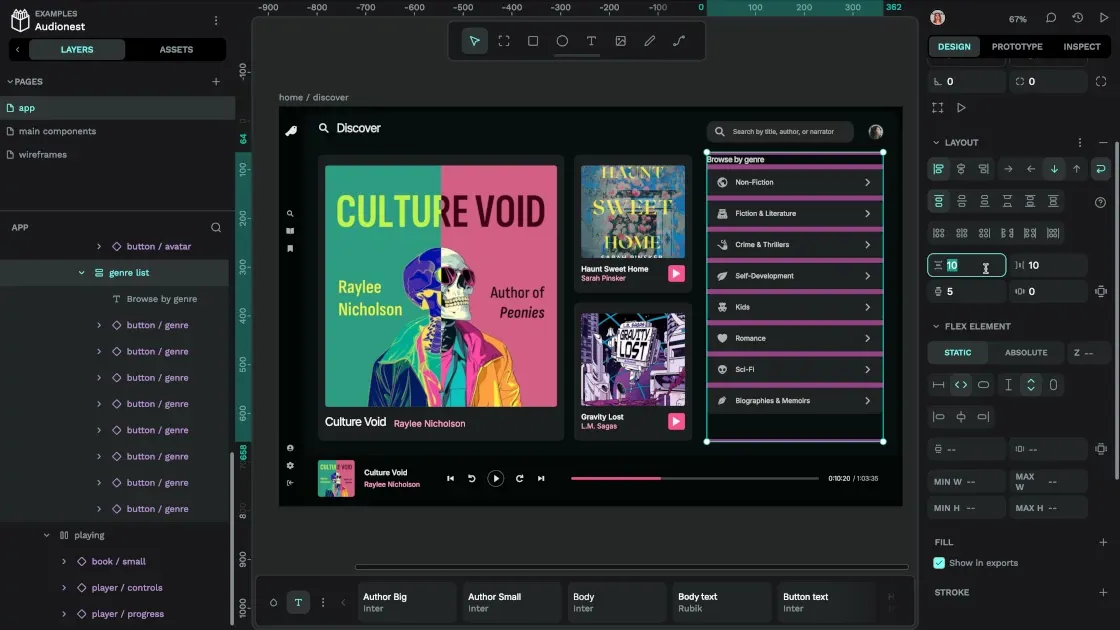
Penpot is open source and runs in the browser or on your own servers, so your work is never locked in. Its suite of dev-focused features such as Inspect tab or CSS Grid and Flex Layouts makes it easier for direct collaboration between designers and developers, reducing the need for frequent product handoffs.
So, what's stopping you from making the switch? There may be a few reasons, including not knowing the best way to move all of your projects to a new platform. Fortunately, Penpot was developed with simple migration in mind. Here are some best practices to get all of your team members using our intuitive, powerful tool just in time for your next big project.
Get buy-in from your team
It can admittedly be difficult to move teams to a new tool, especially one that's central to a product from ideation to development. With Penpot, this migration should be easier as it comes with multiple advantages over Figma. Plus, due to the similar natures of their UIs, anyone familiar with Figma should be able to feel quickly like home at Penpot’s environment right away.
Even so, any change can be met with some skepticism by your team, so here are some things to remind them of when explaining why you’re making this transition:
- Penpot offers a more cohesive workflow and was designed to bring designers and developers together from the very start of a project. It eliminates the handoff, constant back-and-forth, and time delays associated with legacy UI tools, including Figma.
- Design systems built on native design tokens. Penpot supports design tokens natively, using the open format from the W3C Design Tokens Community Group, so your design system speaks the same language as your developers. Import existing token files, including from Tokens Studio, and export them as JSON for your codebase and other tools.
- Self-host or use the cloud. Run Penpot on your own infrastructure for full control over your data and compliance requirements or use our cloud service. The features are the same either way.
- Penpot’s MCP server connects any MCP-compatible AI agent or LLM to your design files and design tokens, so you pick the tools and your team shapes the workflow. Because Penpot expresses design as code and exposes an open API and plugin system, you can tailor AI workflows to the way your organization works, whether that’s design-to-code, token validation or cleanup after a migration. You can also run the MCP server in your own environment, so your data stays with you.
- Penpot has a free plan for everyone, so you can put the money you save into your team or project. Unlimited and Enterprise plans are available for larger teams and organizations.
- Penpot's open-source technology ensures that what you create belongs to you, not Penpot. You can design freely, without worrying about being locked into the technology or tied to a paid user agreement. And because your files are well-structured, open data, they’re ready for AI agents and AI-powered design workflows.
- Penpot offers multilingual support, including for RTL languages. With distributed teams that rely on talent from all over the world becoming the norm, it's important to be able to collaborate with the brightest minds, no matter which of the more than 30 languages they speak.
One way to make this transition easier is to start work on Penpot with a pilot project and then scale. To guide you through the process, you'll find some guided lessons in Penpot’s Learning Center.
Start with a pilot, then scale
Transitioning existing projects to a new tool is not easy. Fortunately, there's a clear path with Penpot’s Exporter plugin which should be of great help in this regard to transfer your files from Figma to Penpot. For this reason, it's often better to start off with something new. Your team can get used to the benefits of Penpot and then make a wholesale transition when they’re more ready.
Expect some manual adjustments. Figma’s Auto Layout is translated into Penpot’s native Flex and Grid layouts, and very large files can be slow to export. Note what needs fixing, build a cleanup checklist for your designers, and then move the rest of your files.
Train your team on the differences
Penpot and Figma may be used for similar purposes, but look a little harder, and you’ll see plenty of differences to set these two apart (we listed just a few in our previous section).
Luckily, having your team learn about these differences couldn’t be easier. With Penpot's extensive resource library and videos, your team will be able to familiarize themselves with its functions and start planning for the transition.
The first place to visit is the Get Started guide, which walks users through the basics in a text format. If you prefer a quicker introduction, check out our video tutorial—get started in under 5 minutes!
Then, we recommend visiting the YouTube library for tutorials on the software's most used features, including CSS Grid and Flex Layout, and prototyping.
Additionally, Penpot’s Learning Center is a valuable source of ongoing training for your team, offering in-depth guides, videos, and resources to help your designers and developers stay sharp and fully equipped to make the most of Penpot's unique features.
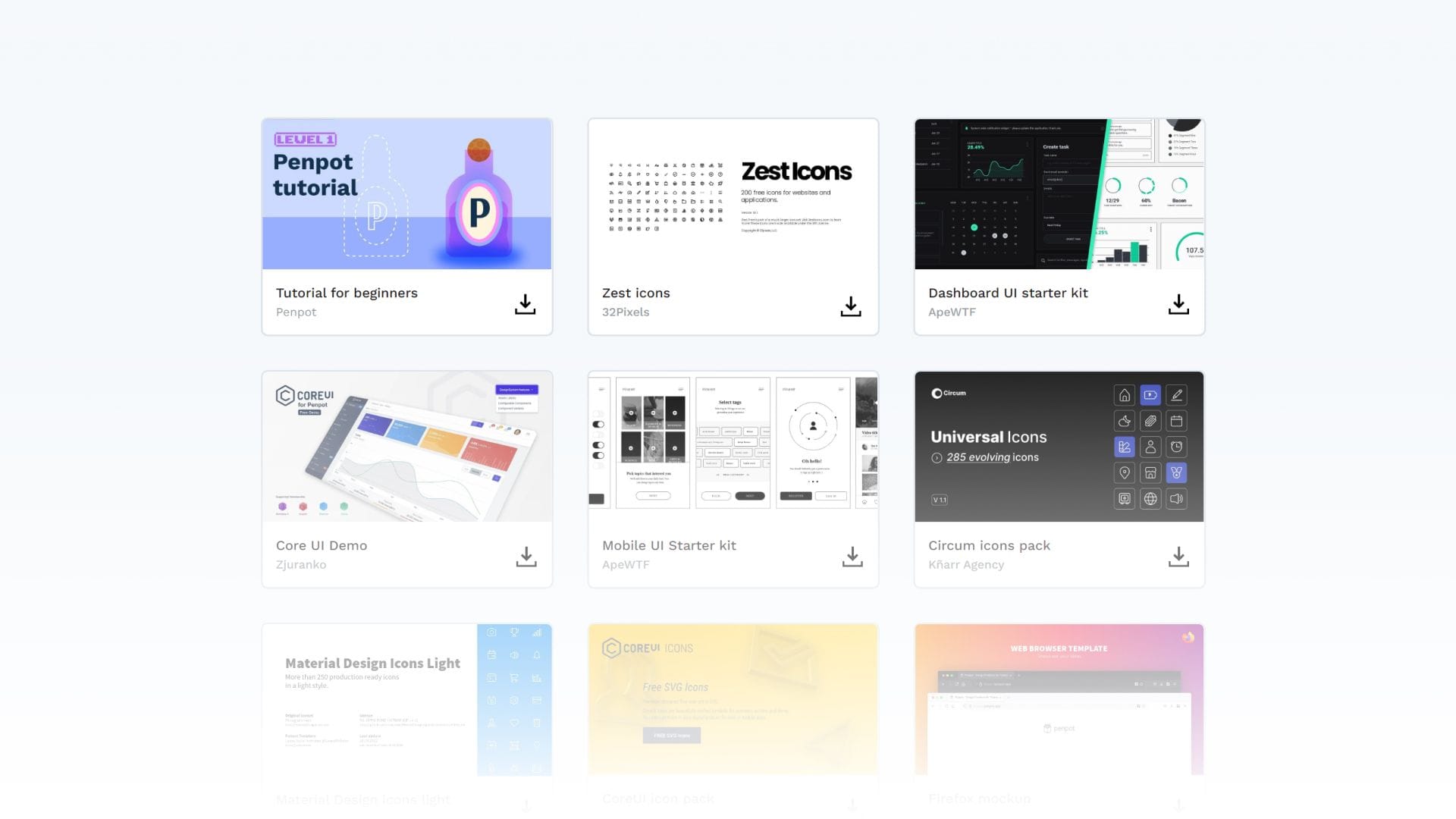
Penpot's Learning Center link
If you don't see a tutorial for your specific need, keep an eye out. We frequently post tutorials in our blog or made by community members in our YouTube channel, which provide various use cases and a source of inspiration, too!
Migrating a team or a design system?
Penpot Enterprise includes migration support from the Penpot team. For the step-by-step process, see the enterprise migration guide or get in touch with our Sales team.
Ready to move faster? Learn how teams can migrate Figma to Penpot more seamlessly.
Create a Penpot account and invite your team
This may be the simplest part of the transition from Figma to Penpot because Penpot is OS-agnostic and can be started with any browser. Just sign up at Penpot.app with your preferred login. There's no need to provide payment info because it's free!
Keep reading further to learn how to create your Penpot account and start migrating your projects and switch from Figma to Penpot on Part II of this post.
--
Related Blogs
Check out our other blogs, from informative topic guides to tutorials on how to get the most out of Penpot.
 Carolina Alves Portugal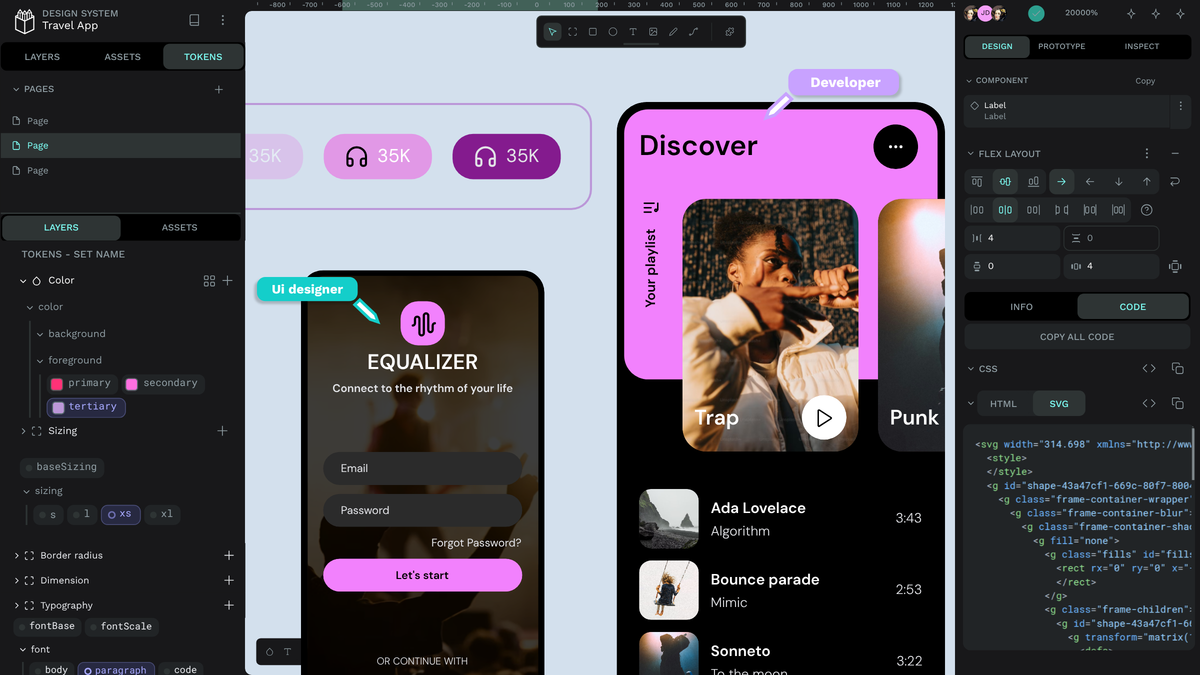
 Carolina Alves Portugal
 Paula Tienza
 Carolina Alves Portugal