5 best Paper alternatives for UI and UX design in 2026
Considering Paper for UI/UX design? See how it compares to five alternatives, including Penpot, Figma, and Framer, before committing to an open alpha tool.

Like many AI-native tools, Paper has promised to upend how UI and UX design gets done. Its designs are built on HTML and CSS with no export step, and it includes a Model Context Protocol (MCP) server that lets AI agents read and write to your files directly. For teams already living in an agent-driven workflow, that's an appealing toolset.
But the idea of AI agents reading and writing directly to a design file isn't exclusive to Paper. Plus, it's worth knowing what Paper does well and where it falls short today. Below, we break down what Paper is and who it's right for, and then compare five alternatives so you can find the AI-ready design platform that fits your team's workflow.
TL;DR
- Paper is a code-native design tool where the canvas is real HTML and CSS, with deep MCP support for AI agents.
- The best design platform for you depends on team size, how much you rely on AI agents today, and how much control you need over your data.
- Penpot is the leading open-source, self-hostable alternative to Paper for teams that want AI-readiness without giving up stability or data control.
What is Paper?
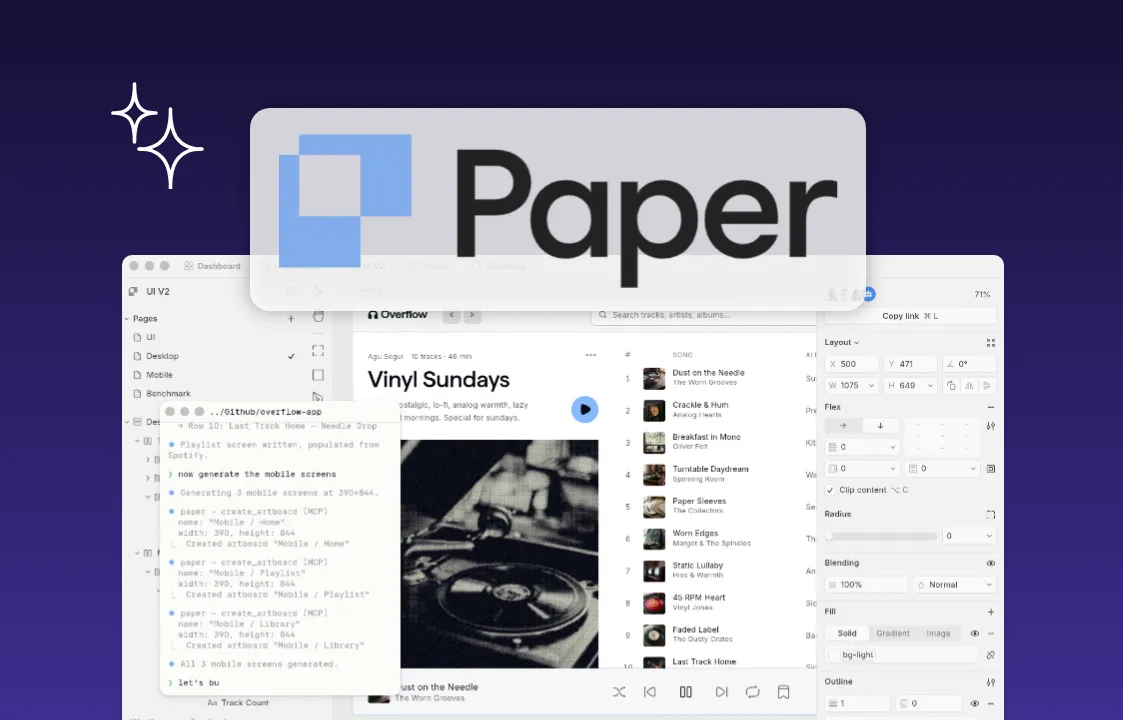
s a design canvas where every frame you draw is already a web element, with true flexbox layouts and live CSS properties, so there's no export step and no translation layer between design and code.
Paper's core feature is its MCP server. Once you open a file in the Paper desktop app, AI agents in tools like Claude Code or Cursor can read and write to your canvas directly, with the ability to create frames, update styles, and pull the JSX or Tailwind output of any element. Agents can also pull live content from sources like Notion or Figma directly into a design file.
Beyond MCP, Paper includes:
- True flexbox layouts, so elements behave with real CSS positioning instead of a flat, freeform canvas
- The OKLCH color model for more perceptually consistent color changes than a standard HSB/HSL picker
- GPU-accelerated shaders, like mesh gradients, liquid metal, and halftone patterns
Paper is still in open alpha, which makes it a natural fit for solo designers and developers or small teams experimenting with AI-driven workflows. If you're a hybrid designer-developer building your own product, or an engineer who wants to prototype UI without leaving your codebase, Paper's code-native canvas removes a lot of the friction a traditional design tool adds.
What people are saying about Paper
Paper is new enough that most of the feedback so far comes from early reviewers and independent comparison sites rather than established platforms like G2 or Capterra.
What people like:
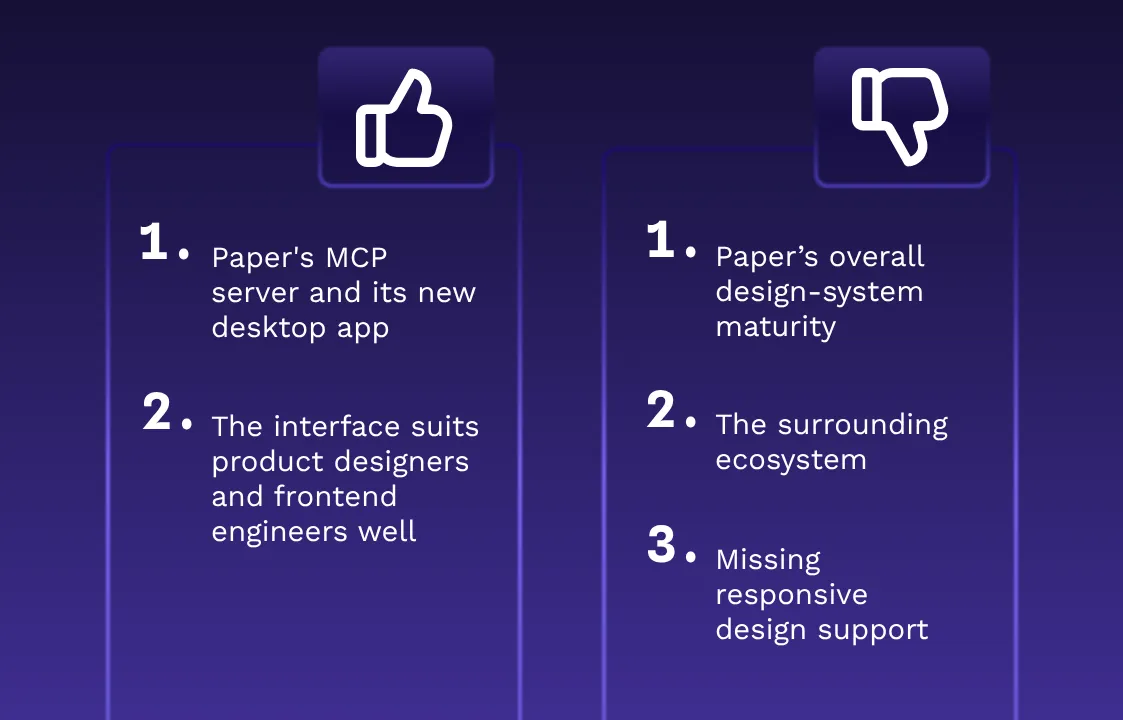
- Reviewers have praised Paper's MCP server and its new desktop app as genuine advances in bringing design and code closer together. (Banani)
- The interface itself has drawn praise for being simpler and less cluttered than a typical design tool, a quality reviewers say suits product designers and frontend engineers well. (DesignToolMark)
Where people see room for improvement:
- Paper’s collaboration tools, component management, and overall design-system maturity haven't caught up to established platforms yet, and reviewers note that open alpha status leaves room for the product to change unexpectedly. (SFAI Labs)
- Reviewers point to missing responsive design support, a narrow set of component types, and the absence of a plugin marketplace as notable gaps. (UI Things)
- The surrounding ecosystem — templates, libraries, and community support — is still catching up to more mature tools, and some features remain rough around the edges. (Design Monks)
The best Paper alternatives at a glance
Before we dive into the details, here's how all five stack up side by side.
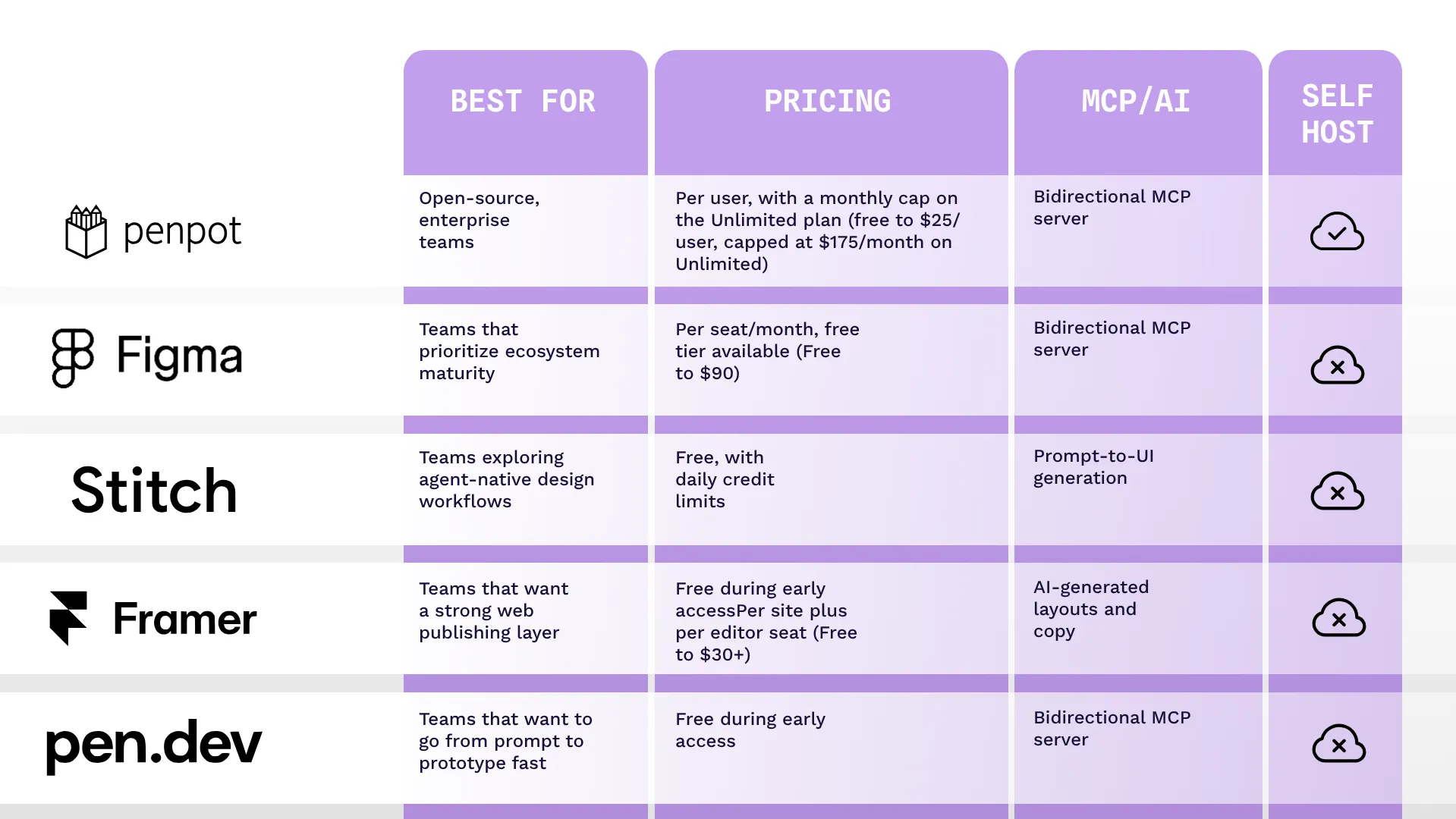
A closer look at the best Paper alternatives
Each of these five tools takes a different approach to AI, collaboration, and control. Here's how they stack up against Paper, and against each other.
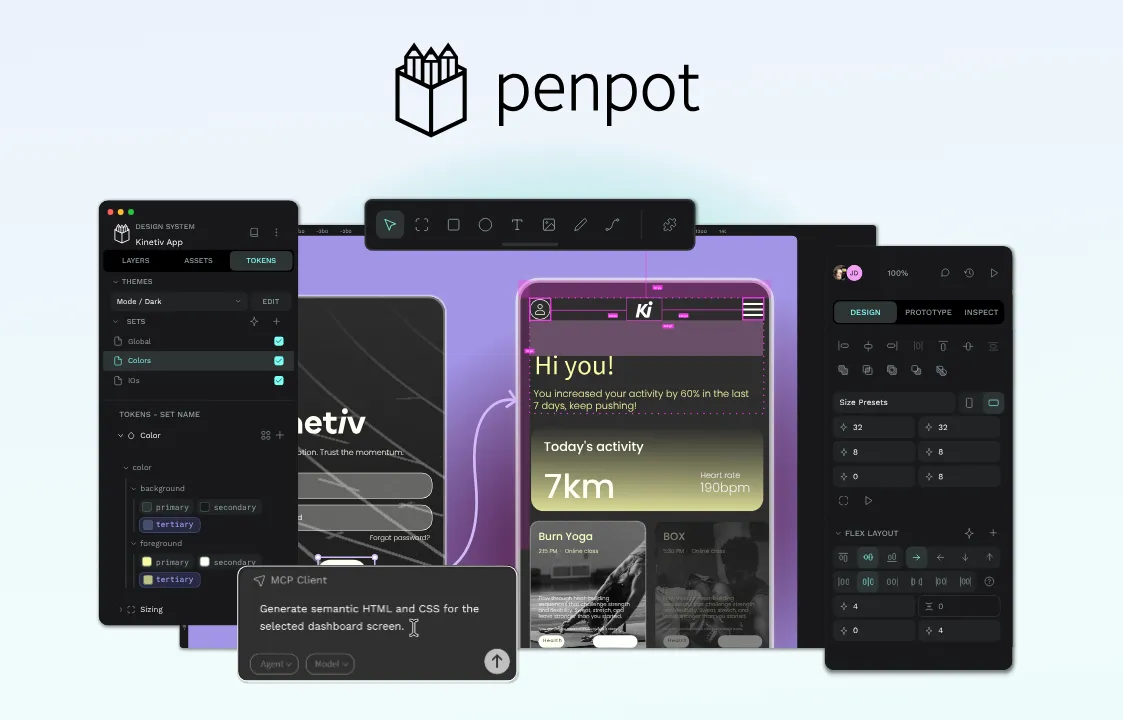
1. Penpot: Best for open-source, enterprise teams
Penpot is an open-source design platform built to close the gap between designers and developers for teams that range from solo designers to enterprise teams. Like Paper, Penpot treats AI agents as an integral part of the workflow, not a side project. Its official MCP server lets agents read, create, and modify design files programmatically, giving teams the same agent-driven canvas access Paper promises, minus the open alpha risk.
Penpot is also fully self-hostable, so your design files and data never leave your own infrastructure. That matters for any team with compliance requirements or a preference for owning its own data. And because Penpot stores designs in open formats (SVG, CSS, JSON), there's no lock-in if your workflow changes down the line.
For teams building or scaling a design system, Penpot's native design tokens (aligned with W3C standards) give design and engineering a shared language that holds up across large systems.
AI approach: Penpot treats AI as a programmable interface layer. Designs are stored in open formats, and an MCP server plus APIs let AI agents read, create, and modify designs, rather than relying only on closed, in-product AI features.
Pros
- Fully open source under the Mozilla Public License
- Can run on your own infrastructure
- Avoids vendor lock-in with SVG, CSS, JSON, and HTML file types
- Native design tokens aligned with W3C specs, plus true CSS flex and grid layouts for easier developer handoff
Cons
- Smaller plugin and template library than Figma
- Performance (when not self-hosted) depends on network and browser capabilities
Pricing
Cloud (Penpot-hosted):
- Professional: Free for up to 8 team members, 10GB of storage
- Unlimited: $7/user/month, capped at $175/month regardless of team size, plus more storage and version history
- Enterprise: $25/user/month, adds SSO, centralized admin, and audit logs
- Private Server: Starting around $50k/year, a dedicated instance Penpot manages for you, with choice of hosting region and guaranteed response times
Self-hosted (you host):
- Professional: Free forever, full open-source deployment on your own infrastructure with community support
- Enterprise: $25/user/month, adds centralized admin, advanced permissions, SSO, and audit logs, all on infrastructure you control
See the Penpot pricing page for current details.
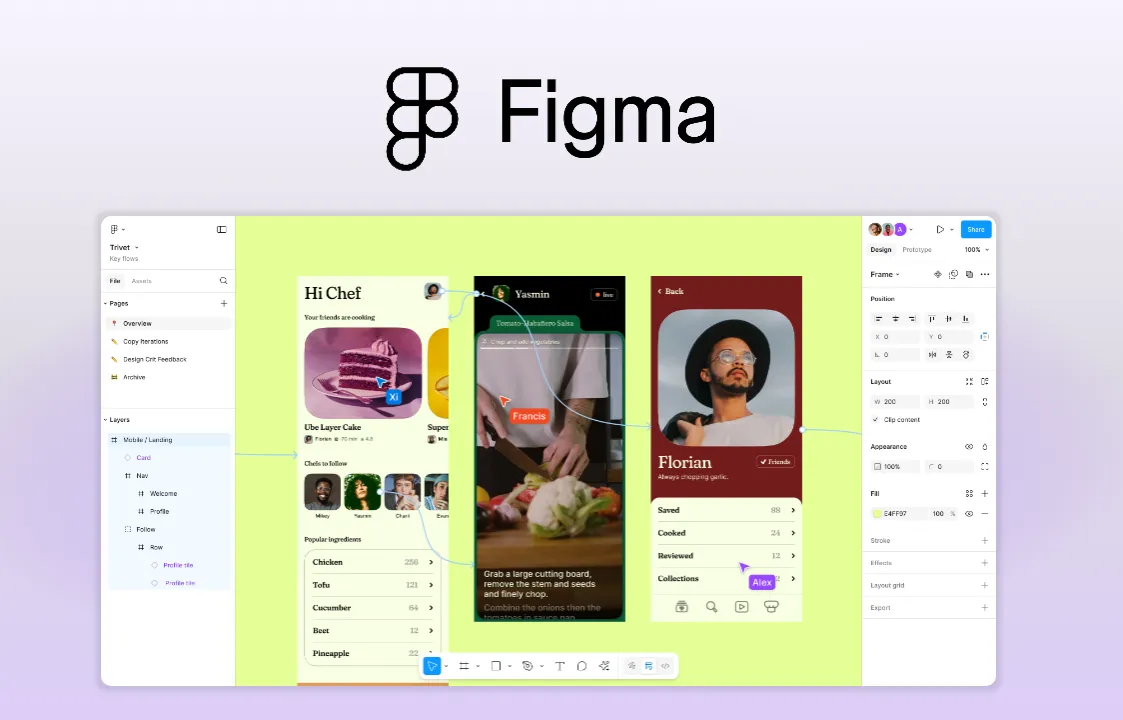
2. Figma: Best for teams that prioritize ecosystem maturity
Figma is one of the most popular design platforms on the market today, built on a decade of components and a plugin ecosystem few competitors can match. Its MCP server pulls component trees, design tokens, and layout constraints into code generation, and agents can also write directly to the canvas, creating and updating frames, components, variables, and auto layout.
For teams with an established Figma workflow, that's a meaningful shift, though canvas-write support is still rolling out across clients and remains a beta, soon-to-be-paid feature rather than a mature, universally available capability.
AI approach: Figma's MCP server sends design context to AI coding agents for code generation, and its newer remote server adds beta support for agents writing back to the canvas directly.
Pros
- Mature, decade-deep plugin and template ecosystem
- Proven real-time collaboration at scale
- Established dev handoff workflows via Dev Mode
Cons
- Canvas-write access is new, beta, and remote-server-only — not yet uniformly available across clients
- Proprietary, cloud-only platform with no self-hosting option
- Per-seat pricing that compounds for large or engineering-heavy teams
Pricing
- Starter: Free, with limited AI credits (150/day, up to 500/month)
- Professional: $16/month per full seat, plus 3,000 AI credits/month (lower-cost Dev and Collab seats also available)
- Organization: $55/month per full seat billed annually, plus 3,500 AI credits/month, adds unlimited teams and centralized admin tools
- Enterprise: $90/month per full seat billed annually, plus 4,250 AI credits/month, adds custom workspaces and SCIM seat management
See the Figma pricing page for current details.
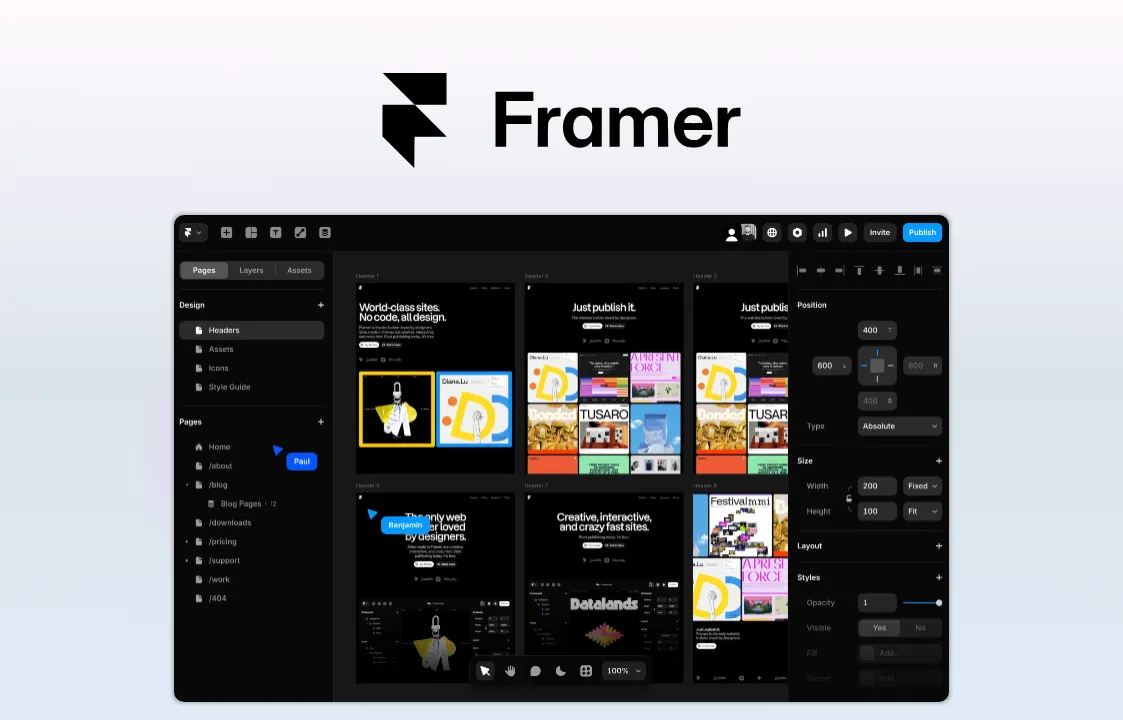
3. Framer: Best for teams that want a strong web publishing layer
Framer bridges high-fidelity design and production hosting, letting teams design, animate, and publish websites from a single platform. It leans on AI to generate layouts, sections, and copy, and supports custom AI plugins so teams can connect their own models. Compared to Paper, Framer's AI features focus on content generation and layout assistance, not agents reading and writing directly to a code-native canvas.
Framer is a strong fit for teams whose primary output is a website rather than a full product design system. It handles animation and micro-interactions well out of the box, and design and hosting live in one platform, so there's no separate deployment step. It's less suited to teams managing complex, multi-screen product UI or a large component library.
AI approach: Framer uses AI to generate page layouts, sections, and copy, with support for custom AI plugins that connect to outside model providers.
Pros
- High-fidelity, animated sites out of the box, with built-in transitions and micro-interactions
- Design and hosting in one platform, reducing context switching
- Custom AI plugin support for teams that want to bring their own models
Cons
- Built for websites, not large, complex product design systems
- Per-site pricing that can add up across multiple brands or properties
- No agent-driven, bidirectional canvas access like Paper's
Pricing
- Free: $0, 500 credits to try, 1GB bandwidth
- Basic: $10/month, custom domain, 2 CMS collections, 50GB bandwidth
- Pro: $30/month, 10 CMS collections, 100GB bandwidth, staging environments and branching
- Enterprise: Custom pricing, unlimited editors, SCIM, SSO, and an uptime guarantee
- Additional editors: $20/month per seat on Basic and Pro; a $10/month Content Editor seat also available for CMS-only access
See the Framer pricing page for current details.
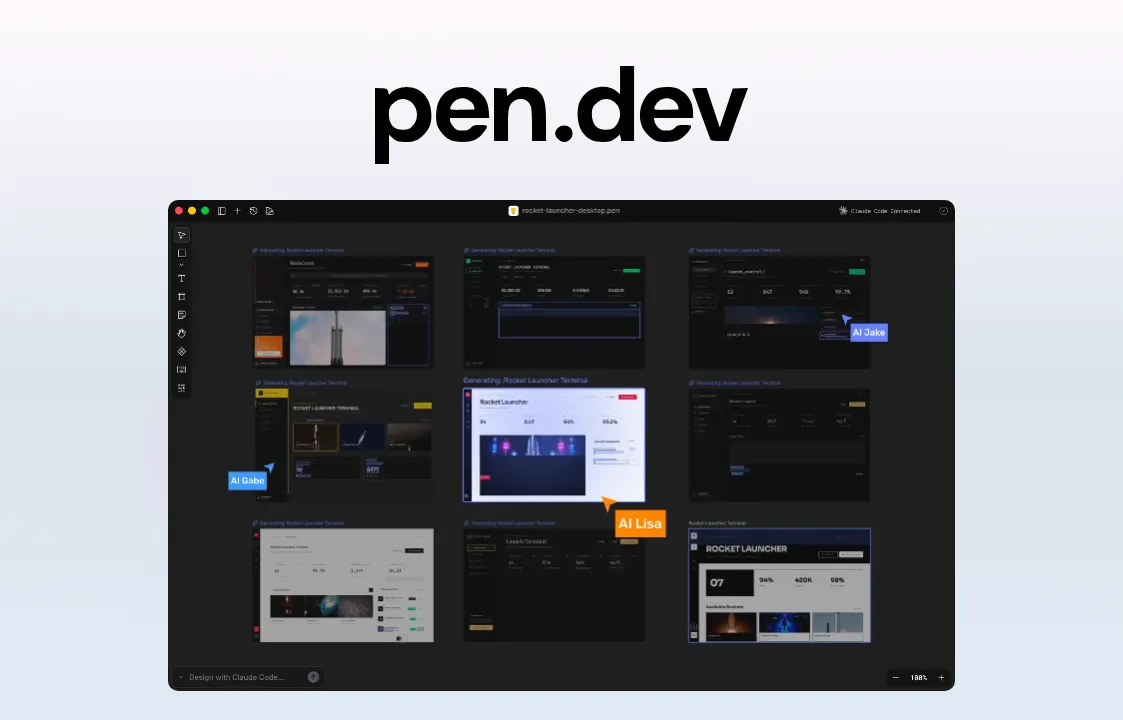
4. Pen: Best for teams that want to go from prompt to prototype fast
Pen (formerly Pencil) is an agent-driven design tool that runs inside your integrated development environment (IDE) or as a standalone app, giving AI agents an infinite canvas to design UI and generate real code side by side. It's MCP-native from the ground up, so tools like Claude Code or Cursor can design and generate code directly inside your existing codebase, with no separate handoff step. In that sense, Pen is the closest match to Paper's core promise on this list.
The trade-off is that Pen shares some of Paper's early-stage limitations. It's a newer product that lacks some of the robust, traditional design tooling found in mature platforms, and it depends on separate AI subscriptions and compatible IDEs to work. Prompt-driven design also comes with a structural risk: Without a shared token or component system enforcing consistency, larger projects can drift out of sync as different screens get prompted independently.
AI approach: Pen is an agent-driven, bidirectional MCP canvas that lives in your codebase, giving AI assistants full read and write access to design and generate code directly inside your IDE.
Pros
- Lives directly in your IDE and codebase, with no handoffs or exports
- Agent-driven, MCP-native workflows that sync with components, tokens, and variables
- Free to try with full AI features
Cons
- Requires separate AI subscriptions and specific IDEs, such as Cursor, VS Code, or Windsurf
- It's a newer product that lacks some of the robust, traditional design tooling features in mature platforms
- Prompt-by-prompt generation can drift out of sync on larger, multi-screen projects
Pricing
Pen is free. See their pricing page for current details.
5. Stitch: Best for teams exploring agent-native design workflows
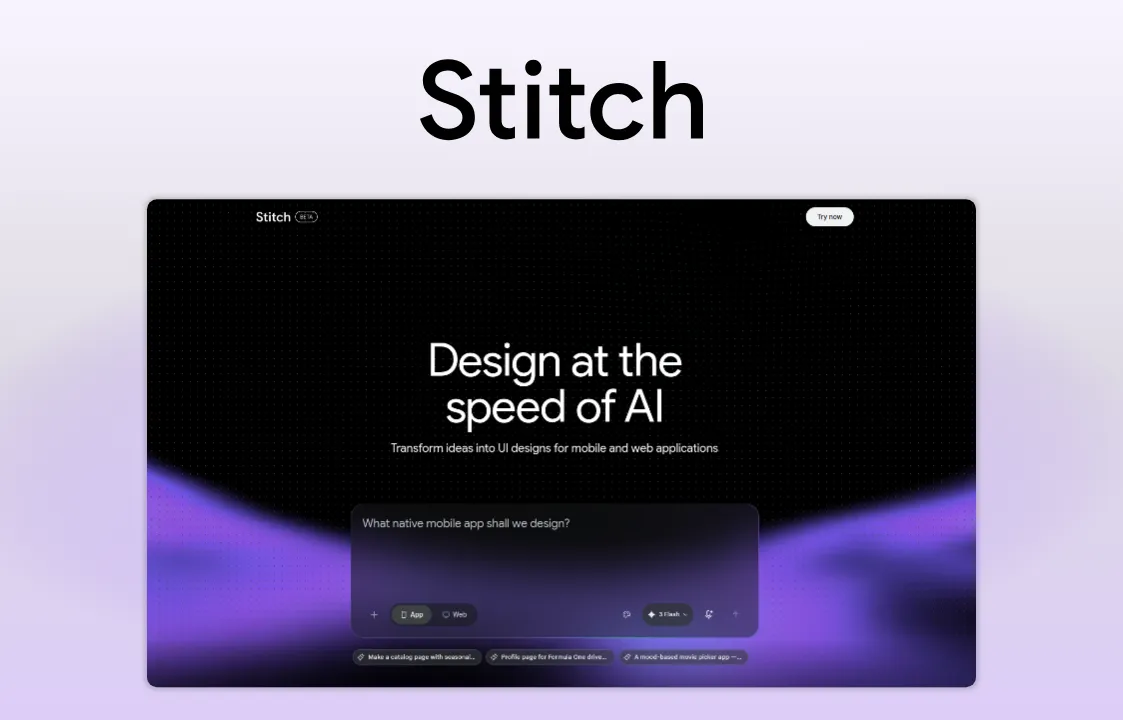
Stitch is Google Labs' AI-native interface generator. Describe what you need and Stitch generates a starting UI you can refine or export. A recent update added voice-driven design on an infinite canvas, pushing it further into prompt-first territory. Where Paper's MCP server lets agents read and write to an existing canvas, Stitch skips the canvas step entirely and generates the interface from the prompt itself.
That makes Stitch fast for early exploration, but it isn't a collaborative design platform. There's no persistent file that agents can iterate on over time, no component system, and no path to production handoff built in. It's best treated as a sandbox for testing what AI-driven interface generation looks like, not a replacement for a team's primary design tool.
AI approach: Stitch is Google's AI-first approach to UI generation. You describe the interface in text or voice, the AI generates it, and you refine or export from there.
Pros
- Extremely fast idea-to-UI turnaround, often minutes from prompt to first draft
- Accessible to non-designers who need something workable on screen quickly
- Useful sandbox for testing what AI-driven design workflows can do
Cons
- Not sold as a full collaborative design platform
- Limited daily credits with no option to purchase more
- Better suited to prototypes and exploration than production-ready handoff
Pricing
Google Stitch is completely free for now. However, you are restricted to a daily credit limit, which resets at midnight.
How to choose the right Paper alternative
No single tool wins for every team, so the right choice depends on what your workflow actually demands. Before committing, it helps to ask yourself these questions.
What kind of work are you designing for? Full product design platforms like Penpot and Figma handle complex app UI, design systems, and developer handoff. Framer is better suited to shipping marketing sites and web pages. Stitch works best for early concepting and exploration, and Pen is built for engineers prototyping directly inside a codebase.
How much does data control matter? If owning your infrastructure is a priority, whether for security, compliance, or vendor independence, self-hosting is a must. Penpot is the only platform on this list that supports it. Figma, Framer, and the AI-first tools keep you in their cloud entirely.
How does your team collaborate across design and development? Teams spread across disciplines and codebases need a tool that generates formats developers can use directly, without a costly translation step. Penpot and Pen both prioritize this by being based on open web standards instead of proprietary formats like Figma.
How AI-ready does the tool need to be? There are two different approaches here: tools that embed AI features into the UI, and tools that expose MCP-style access so agents can read and modify design files programmatically. Paper and Pen are both built around the second approach from the ground up. Penpot combines an official, bidirectional MCP server with a mature design platform, open file formats, and self-hosting, a harder combination to find elsewhere for teams that need AI-readiness alongside compliance and long-term stability. Figma's MCP now supports canvas writes too, though only in beta via the remote server, while Stitch and Framer lean on AI for generation rather than persistent, agent-editable files.
Become AI-ready with Penpot
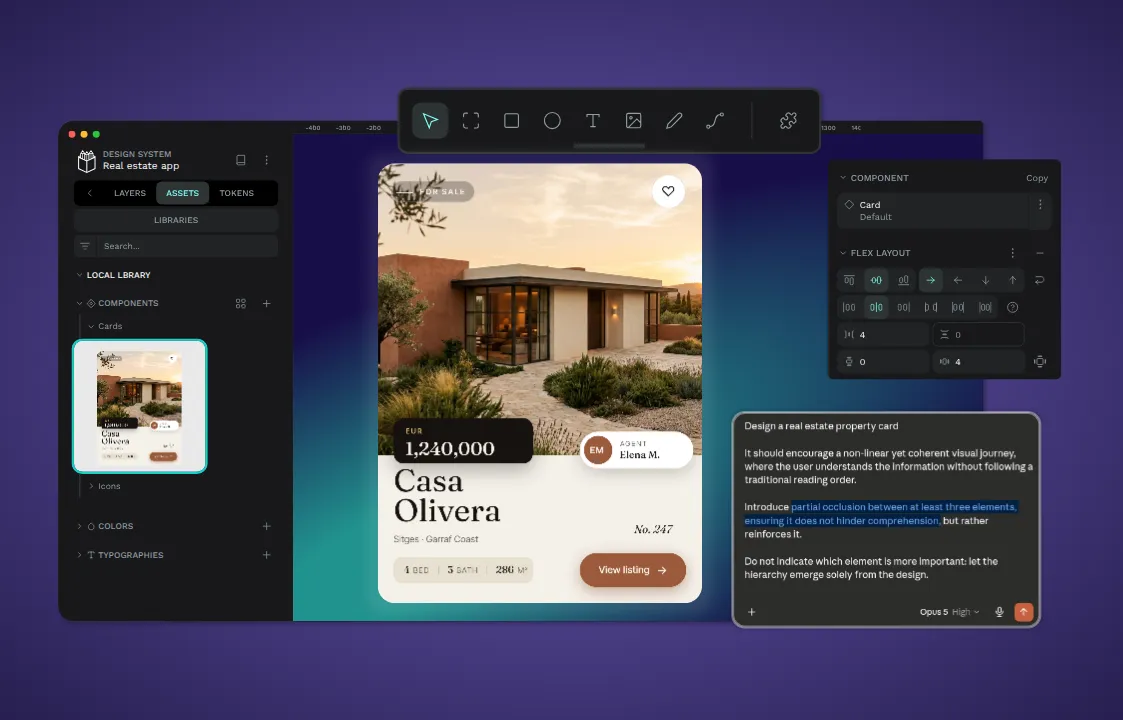
Most Paper alternatives solve one problem well. Framer is great for shipping websites. Stitch speeds up early exploration. Pen brings agents into your codebase but asks you to build everything else from scratch. What none of them offer is what Penpot does: a design tool where AI agents can read and write to your files directly, without giving up stability, collaboration, or control over your data.
Penpot is open source, self-hostable, built on open web standards, and backed by an official MCP server that makes it AI-ready today, not in a future open alpha release. It's built for teams that want the agent-driven workflow Paper is pointing toward, without giving up the polished, complete design platform serious design work requires.
If you're ready to get started, sign up for a free account today or speak with our team to find the right plan for your organization.
FAQs
Is Paper ready for production use?
Not yet, for most teams. Paper is still in open alpha, which means its APIs can change, features can break between updates, and support options are limited compared to an established platform. It's a solid choice for solo builders and small teams experimenting with AI-driven workflows, but larger or client-facing teams should wait for it to reach a more stable release before relying on it for production work.
Is Penpot a good alternative to Paper's AI features?
Yes. Penpot offers an official MCP server that lets AI agents read, create, and modify design files programmatically, the same core capability Paper is built around. The difference is that Penpot pairs that access with a mature, stable platform, open file formats, and self-hosting, so teams get AI-readiness without taking on open alpha risk. Learn more about Penpot’s AI features on our MCP server feature page.
Can I migrate my designs from Figma or Paper to Penpot?
Migrating from Figma is a well-documented process: export your files in Penpot-friendly formats (JSON or SVG) and import them into your new libraries or use the Penpot exporter. For enterprises Penpot developed an accurate migration guide soon downloadable from its User Guide on the Help Centre. Migrating from Paper is less established, since Paper is a newer tool built around a different, code-native file structure. Expect more manual rebuilding of components and styles than a Figma migration, at least until Paper's ecosystem matures further.
What's the difference between a read-only and a bidirectional MCP server?
A read-only MCP server sends design context (component trees, tokens, layout constraints) to an AI agent so it can generate code that references your design. The agent can look, but it can't touch the file. A bidirectional MCP server, like Penpot's or Paper's, lets an agent both read and write to the design file directly, creating frames, updating styles, or generating new components on the canvas itself. For teams that want AI agents to actively participate in the design process rather than just reference it, that difference is decisive.
Blogs related
Read more articles on design tools:
 Carolina Alves Portugal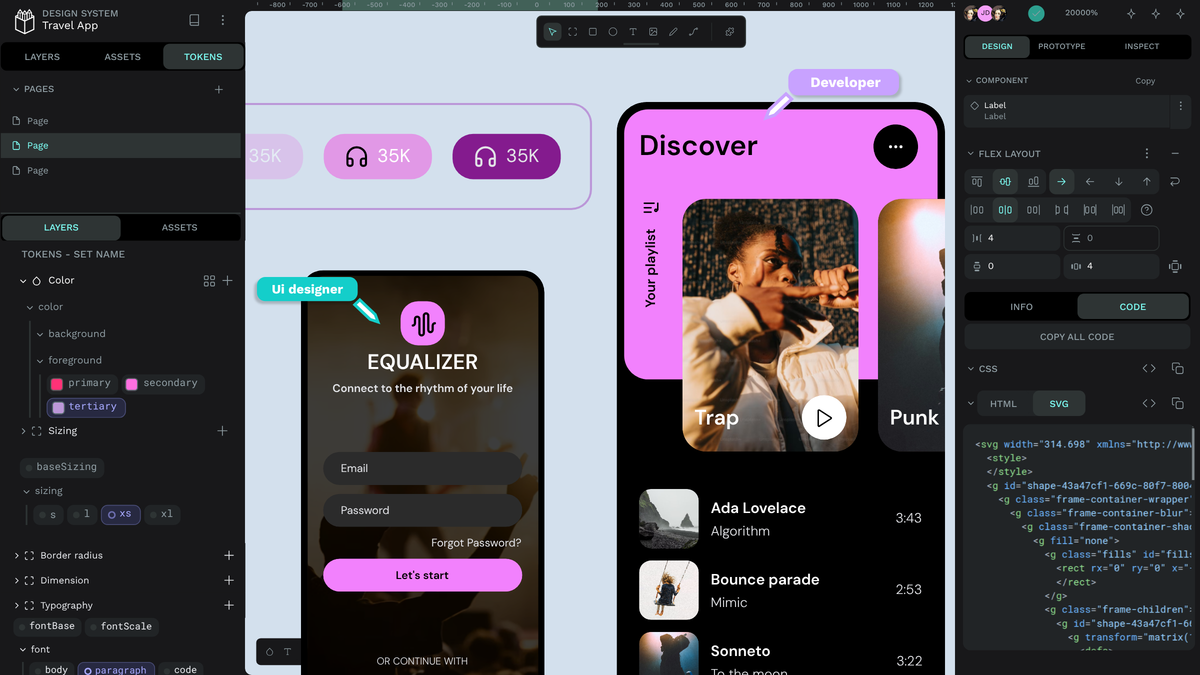
 Carolina Alves Portugal
 Paula Tienza