14 best Figma alternatives for UI and UX Design
Figma is powerful but not perfect. Explore 14 UI and UX design tools, from open-source to AI-first, to find the best Figma alternative for your team.

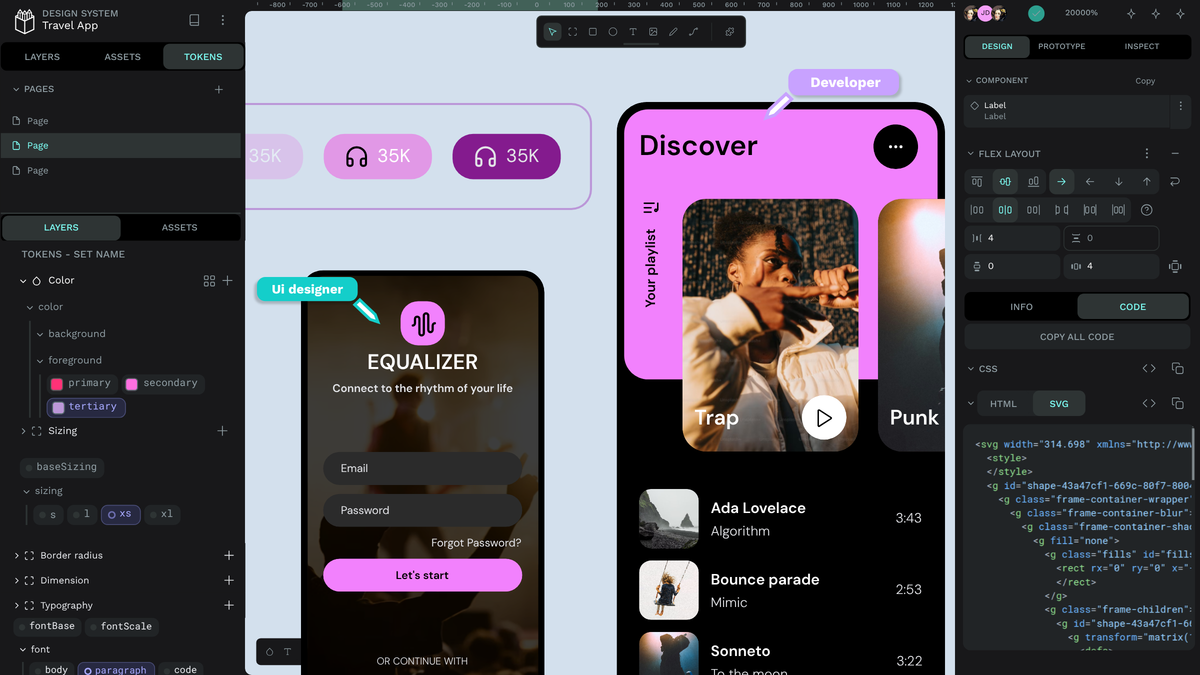
Figma is one of the most widely used digital design tools around, but it's not the right fit for every team. Whether it’s the high costs, issues with vendor lock-in, or UX friction, many teams choose to move on from Figma to see what else they can use for their design projects.
The good news is that Figma is hardly the only game in town. There are many other options that promote easy migration, flexible seat use, and AI tool integration. We narrowed down all the current UI/UX design tools on the web to our 14 favorites. Read on for the pros and cons of each so you can find the design software that's perfect for your design system or next product.
TL;DR
- Figma’s pricing, proprietary tech, and cloud-only technology aren’t ideal for every team or workflow.
- We evaluated several alternatives, including full design platforms, AI-first tools, and those specific to prototyping and wireframing.
- Your choice ultimately depends on your workflow, security needs, and what you plan on building.
- Penpot is the leading open‑source, self‑hostable Figma alternative.
Why Figma isn’t the right design tool for everyone
Figma’s large library of plugins for design systems, collaboration, content, and automation has helped it become widely adopted in the marketplace. But it’s not the ideal solution for all use cases. Designers and developers cite the following reasons when switching to alternatives.
1. A closed system you don't own
Figma is a proprietary SaaS platform, which means the code is closed, your data lives on Figma's infrastructure, and your workflows are built on top of their plugin APIs. This means nothing you build in Figma is truly yours to control.
If Figma one day decides to increase prices, change a key feature, or close up shop altogether (like Adobe XD), then this closed architecture will make it difficult for teams to take their files and workflows and move elsewhere. Plus, with new concerns around Figma’s AI privacy, it’s more important than ever to know exactly what's happening under the hood with your design system has never mattered more.
2. No self-hosting options
Figma’s cloud-based, SaaS service approach leaves you dependent on its servers, hosting, and data practices. It may not be ideal for companies in highly regulated industries or with strict customer privacy needs.
You can't bring data storage or processing in-house, which is a common preference for enterprises in government, finance, healthcare, or defense.
3. Pricing complexity
Figma customers pay a per-seat price, which increases with feature and security needs. So, developers who require advanced features pay much more than a stakeholder who just wants to peek at design mockups.
For large, dispersed, or engineering-heavy teams, however, the cost of each new team member's access can quickly mount up. If you’re not quick to revoke access or limit functionality to just what’s needed, you could pay more than necessary in seat fees.
4. Sluggish performance with large files
Each new component or design token makes the platform more complex, which runs on a cloud-based server you can’t control. That may be why some report files are slower to open, pan, and edit, especially if they have complex auto-layout or nested components.
There’s a trade-off here: You get the convenience of off-site storage with real-time sync, but large, proprietary files can still be slow on lower-powered devices or poor network connections. (And since you can’t store the platform onsite through self-hosting, there’s not really a way around this issue.)
14 best Figma alternatives at a glance
How we evaluated the best Figma alternatives
We chose the most common tools used today and weighed them by the following factors:
- How well each tool supports real product design work, such as components, auto‑layout, prototyping, and design systems
- How teams actually collaborate in it: Is there real‑time editing, review, or ecosystem maturity?
- How the platform is deployed, including browser vs native, SaaS vs self‑host, and data control
- Overall cost structures, such as free tiers, per‑seat pricing, and enterprise options
- Strength of integrations with development workflows, including code‑like output, design tokens, and dev handoff
- How “AI‑ready” each tool is: Does it simply embed AI features in the UI? Or does it expose open formats, APIs, and MCP‑compatible interfaces that let AI agents read and modify design files programmatically?
We also took reviews from G2 and Capterra into account (although some tools were too new to have many reviews).
A closer look at the 14 best Figma alternatives
Full design tools
Penpot
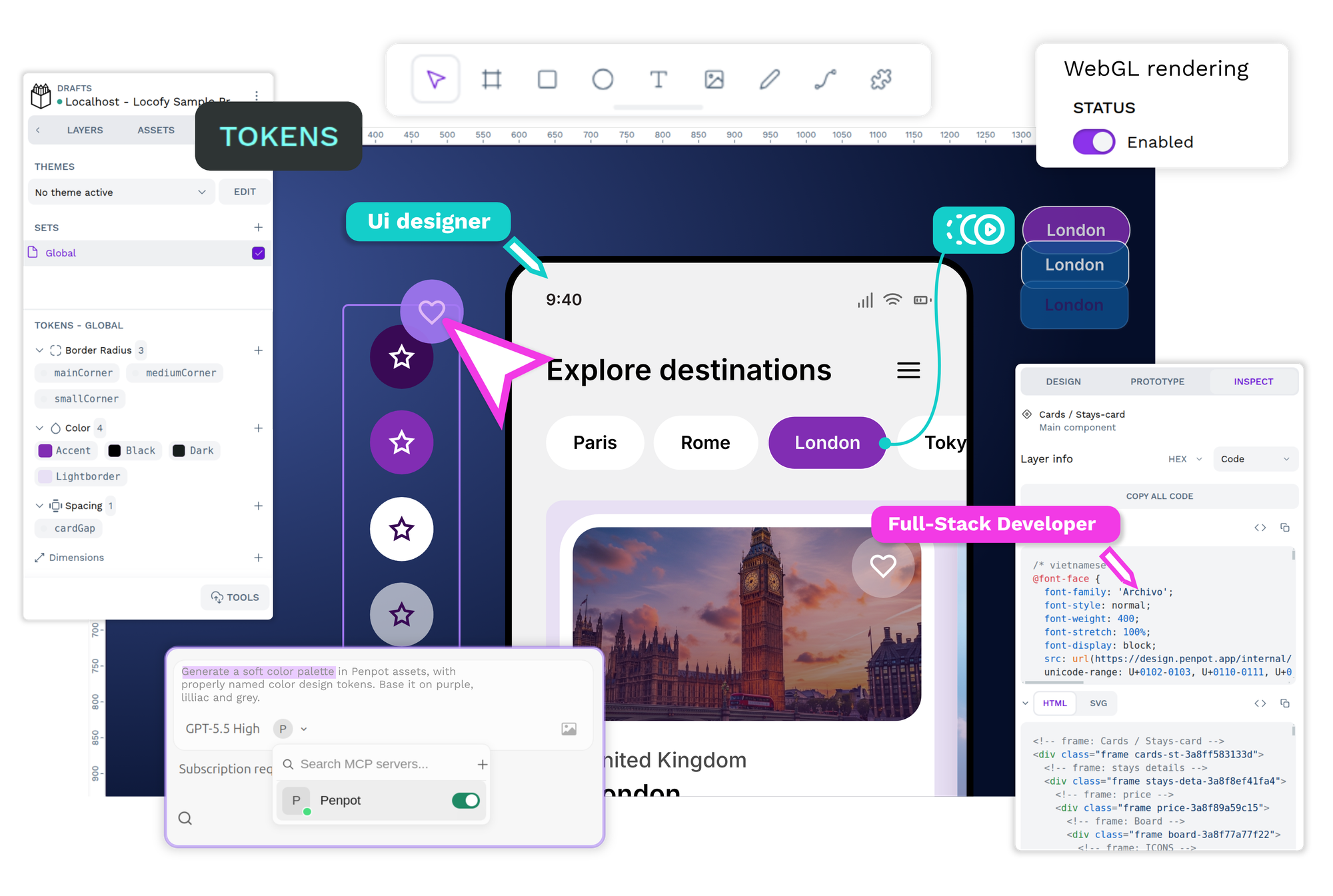
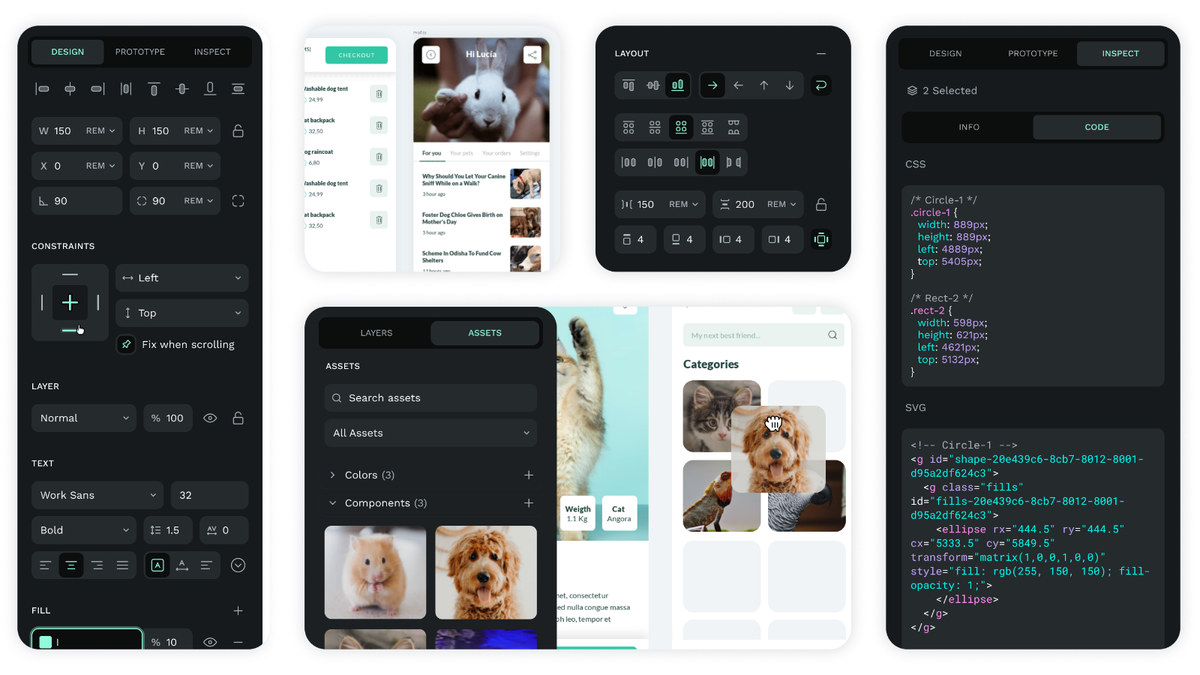
Penpot is an open-source platform for design and code collaboration, built to connect designers and developers without hand-off drama around specs, redlines, and mismatched components. Designs are expressed as code, limiting back-and-forth between teams around intent and execution.
For enterprise teams, the real advantages go deeper. Penpot is fully self-hostable, meaning your design files and data never leave your own infrastructure, a critical consideration for teams with strict compliance or data sovereignty requirements.
Plus, Penpot offers teams an official MCP server that allows them to implement AI in a way that makes the most sense for them. You can bring any AI model (including your own) and then use AI agents to read, create, and modify design files programmatically, making Penpot a genuine infrastructure layer for AI-assisted workflows rather than a closed tool with AI bolted on.
Finally, Penpot includes native design tokens, aligned with W3C standards, which give design and engineering a shared language that scales cleanly across large systems. These tokens, combined with Penpot’s design system features, make it easier than ever for larger teams to maintain consistency at scale.
Best for: Cross‑functional product teams and enterprises that want an open-source design platform with deep developer alignment, self‑hosting, and strong design‑system support
Pricing: Free plan available; see full and updated pricing on the Penpot pricing page.
AI approach: Penpot treats AI as a programmable interface layer where designs are stored in open formats (SVG, CSS, JSON). An MCP server plus APIs lets AI agents read, create, and modify designs instead of only using closed-in-product AI features.
Pros
- Fully open source under Mozilla Public License
- Can run on your own infrastructure
- Avoids vendor lock-in with SVG, CSS, JSON, and HTML file types
- Native design tokens aligned with W3C specs, true CSS Flex and Grid Layouts for easy developer handoff
Cons
- Smaller plugin and template library than Figma, so teams may miss integrations they already rely on
- Its browser-based technology means performance (when not self-hosted) depends on the network and browser capabilities
Reviews
Sketch
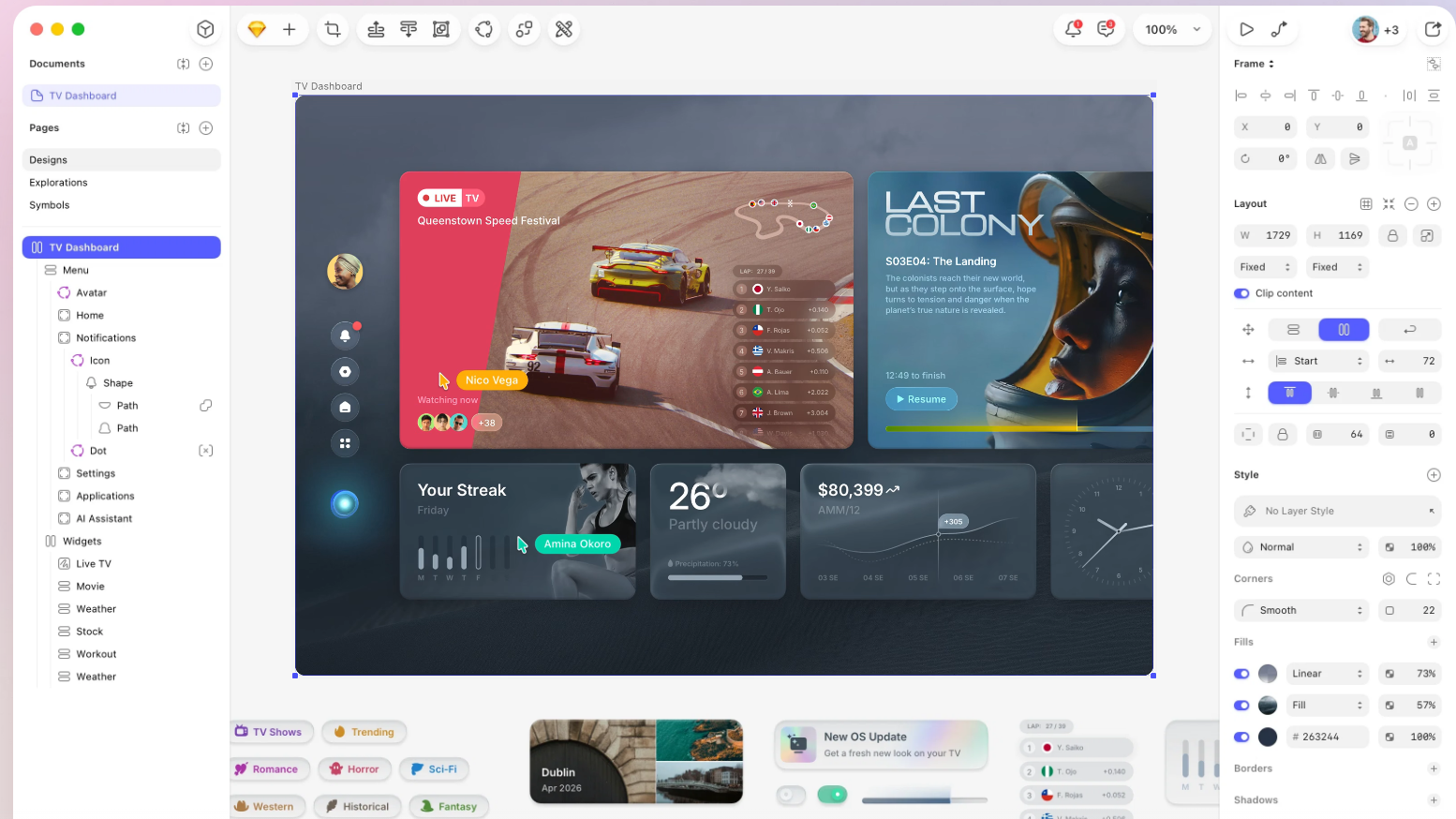
Sketch positions itself as a “digital design toolkit” for macOS that pioneered modern UI design workflows, with powerful vector tools, components (Symbols), and a mature plugin library. Its native app delivers strong performance and a familiar Mac experience, complemented by a web workspace for sharing and feedback. It’s ideal if your team lives on macOS and doesn’t want a browser-only stack.
Best for: Mac‑first design teams that want a mature, native UI design app with a huge plugin selection
Pricing: No free full plan (trial available); see full and updated pricing on the Sketch pricing page.
AI approach: Sketch is primarily focused on being a reliable native editor plus plugin library, with AI enhancements mostly coming via third‑party plugins and integrations. It doesn’t have a core AI‑first roadmap.
Pros
- Smooth performance and predictable behavior that complements existing macOS workflows
- Long‑standing, extensive plugin options that cover automation, asset management, developer tools, and integrations with other SaaS products
- Familiar layer- and artboard-based workflow for long‑time UI designers
Cons
- macOS‑only limitation that excludes Windows/Linux designers and discourages cross-platform collaboration
- Slower Sketch for Team collaboration experience compared to real-time editing
Reviews
Webflow
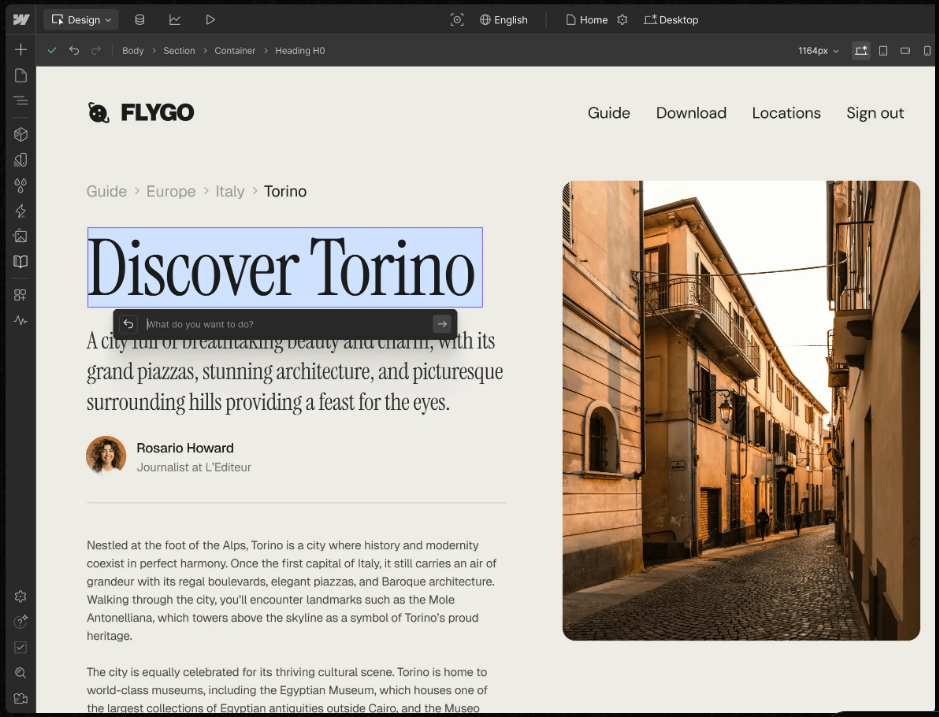
Webflow is a “no‑code visual website builder” that gives designers full control over HTML, CSS, and JavaScript via an intuitive visual canvas. Webflow stands out as the best fit if your primary goal is shipping marketing sites and landing pages directly to production rather than managing complex app design systems.
Best for: Marketing and growth teams that want a no‑code visual website builder that outputs production‑ready sites without writing HTML/CSS
Pricing: No full free plan for production sites, only for starter/workspace tiers; see full and updated pricing for details.
AI approach: Webflow uses AI to speed up content and layout work (such as section generation), but primarily as a layer on top of its visual design‑to‑code builder. It’s not a fully AI‑driven UI generator.
Pros
- Visual control with real CSS under the hood that lets you visually manipulate layout and style while still mapping
- Bundles design, CMS, and hosting, so teams can go from wireframe to live site in a single tool
- Built for creating marketing sites, portfolios, and content-driven experiences where speed matters
Cons
- Less suited to complex product UX and large app systems, and not a replacement for a full design platform
- Learning curve for non‑technical teams
Reviews
Framer
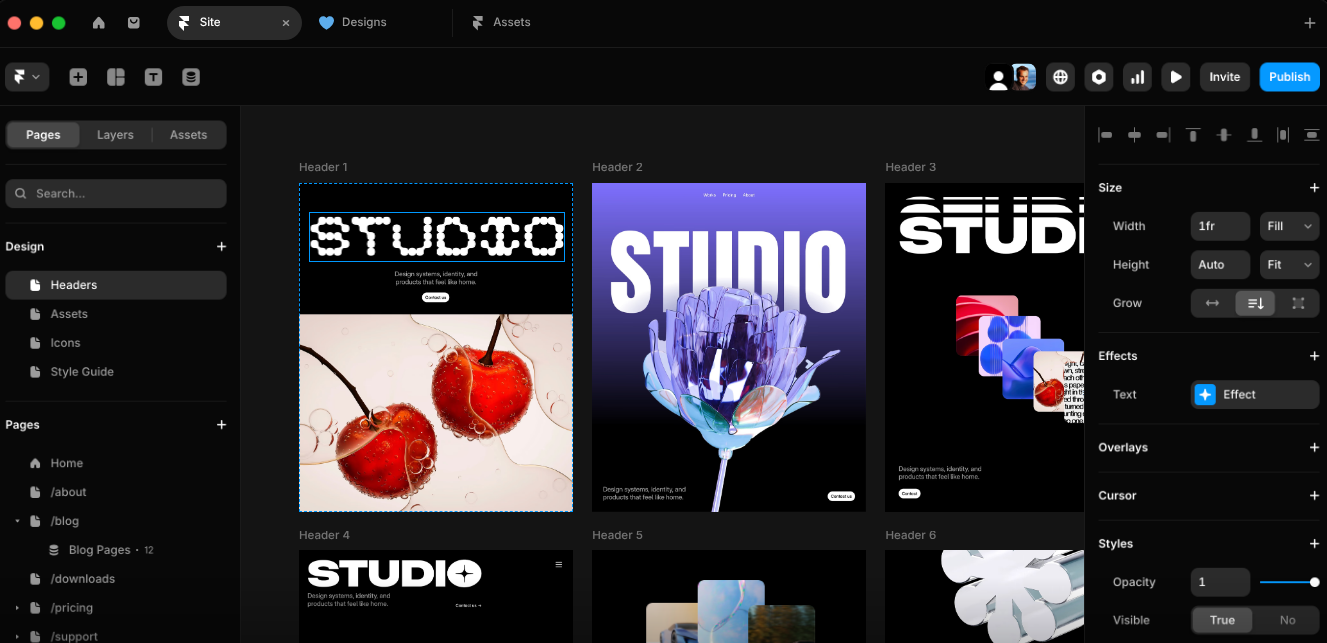
Framer is a platform designed to create websites with rich interactions, bridging high‑fidelity prototyping and production hosting. It’s a design‑to‑production tool with built‑in AI layout and content help, plus support for custom AI plugins, ideal for fast‑moving marketing teams.
Best for: Teams that want a design‑to‑production website platform with strong animation and AI‑assisted content tools for modern marketing sites
Pricing: Free site with Framer branding available; see full and updated pricing at their website.
AI approach: Framer uses AI to generate page layouts, sections, copy, and translations. It allows custom AI plugins so teams can connect to models like OpenAI, Anthropic, and Gemini.
Pros
- High‑fidelity, animated websites out of the box, supporting transitions and micro-interactions for quick website builds
- Integrated AI tools plugin framework, including image generation; support for teams to wire in their own AI providers
- Design and hosting in one platform to reduce context switching and complicated tech stacks
Cons
- Best for website and not ideal for complex product design systems with hundreds of screens
- Per‑site pricing that may add up for multiple brands or properties
Reviews
AI-first UI design tools
Stitch
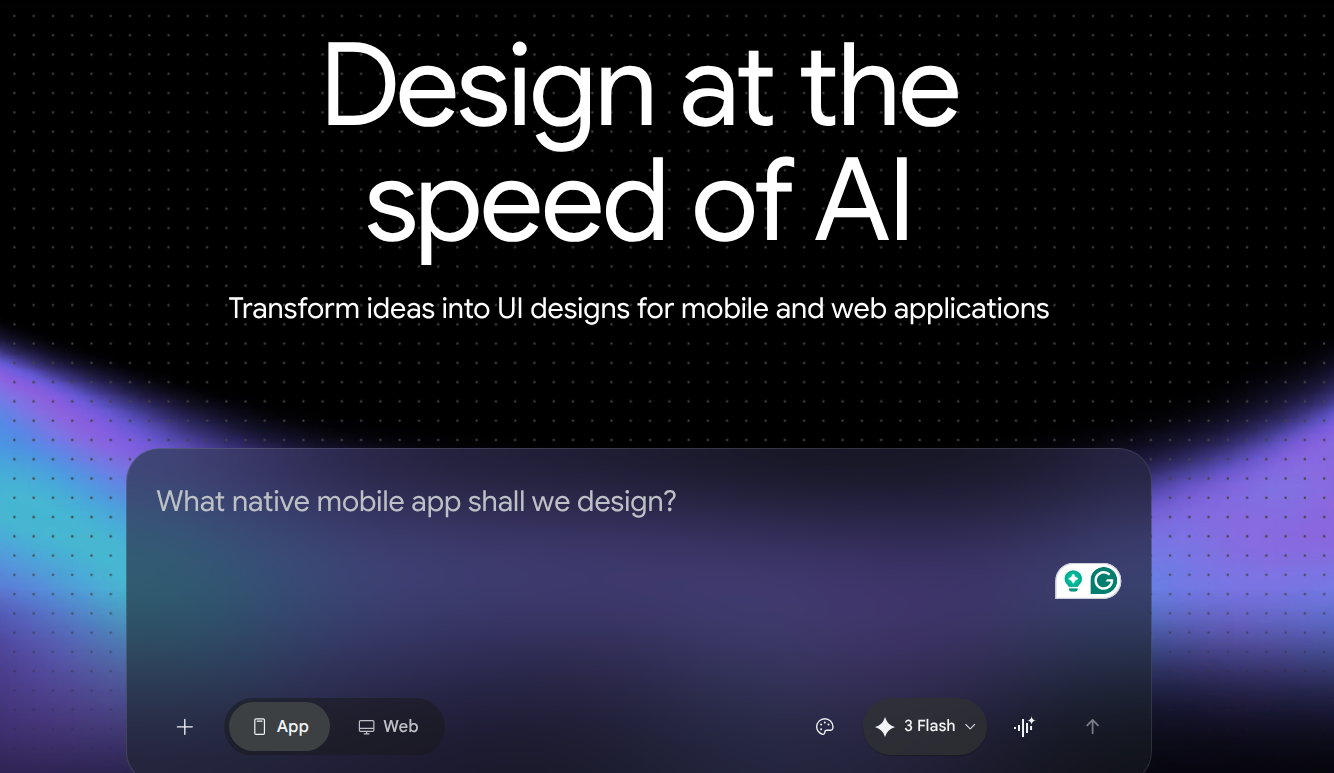
A recent addition to Google Labs, Stitch is an AI‑native interface generator where you write what you need, such as “a dashboard with filters and charts,” and the system creates an initial UI. It can speed up exploration for non‑designers or engineers who need something on screen quickly. It’s a pure example of AI‑first UI creation, but it is not a full collaborative design platform yet.
Best for: Developers and product teams who want a native AI UI generator to create interfaces rapidly from natural‑language prompts
Pricing: Stitch is free up to a daily credit limit (viewable from account settings), which resets at midnight.
AI approach: Stitch is Google’s AI‑first approach to UI. It lets you describe the UI in text, the AI generates the interface, and you refine or export from there.
Pros
- Extremely fast idea‑to‑UI turnaround, with first versions in minutes for brainstorming or hackathons
- Accessible to non‑designers who need to produce something workable
- Great for experimentation, as it acts as a sandbox for what AI-driven design might look like
Cons
- Not marketed or sold as a full product; can currently only use limited credits with no option to buy
- Better for prototypes and exploration than day-to-day designs ready for production handoff
Reviews
- G2: Not widely rated yet
- Capterra: Not widely rated yet
Uizard
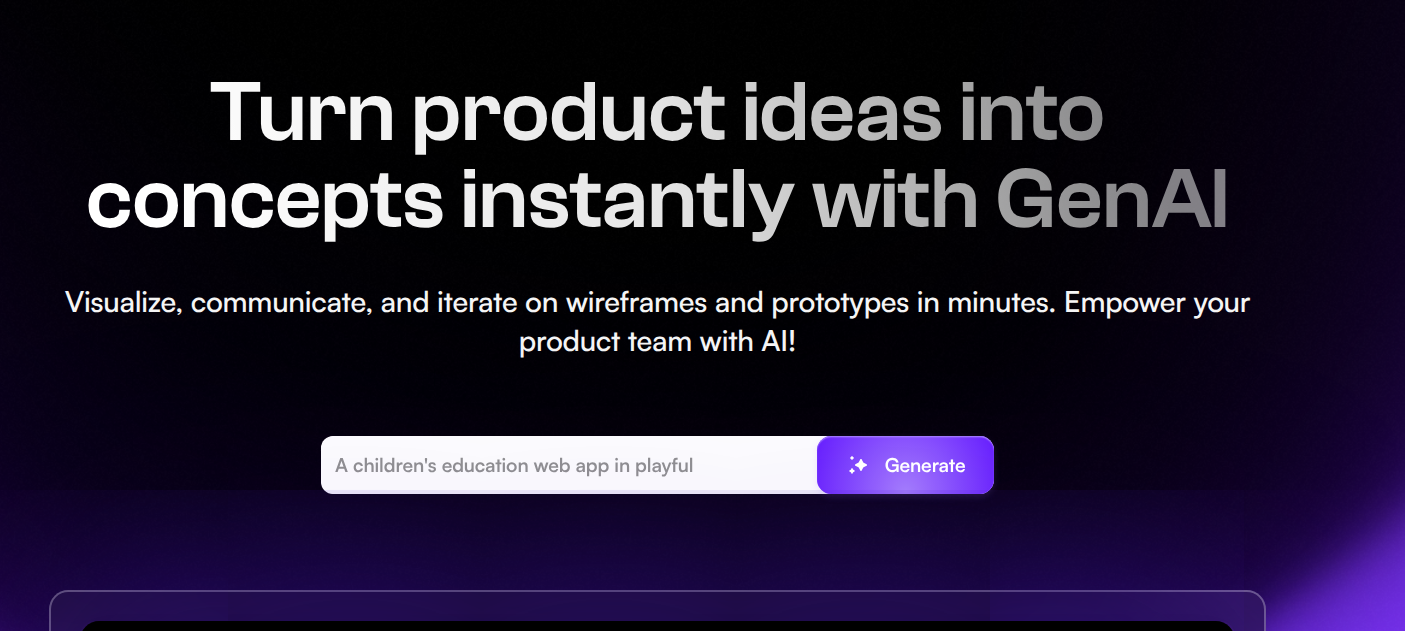
Uizard was one of the first AI design tools on the market. It can transform text prompts, screenshots, or hand‑drawn sketches into interactive prototypes. Uizard also includes templates and components for web and mobile apps, making it easy to iterate quickly on ideas.
The aggressive focus on AI is geared toward non‑designers who want early-stage startup support.
Best for: Startups, founders, and non‑designers who want an AI-powered design tool that converts text and sketches into wireframes and prototypes
Pricing: Free plan available; see full and updated pricing on Uizard’s pricing page.
AI approach: Uizard is AI‑first, with features like text‑to‑UI, screenshot‑to‑wireframe, and sketch‑to‑mockup that automate early‑stage design.
Pros
- Multiple AI input modes that can be turned into editable UI, saving time on basic wireframing
- Very low barrier to entry for non‑designers to get usable prototypes within minutes
- Browser‑based and collaborative features for iteration on AI-generated designs
Cons
- Limited control over fine‑grained visual systems
- AI outputs require manual refinement and are only starting points for UX best practices like information hierarchy, accessibility, and interaction patterns
Reviews
UX Pilot
UX Pilot is an AI UX design tool that helps generate user flows, wireframes, and UX writing from high‑level prompts. Teams can integrate it with Figma and other tools to export generated content, and it’s one of the few tools focused specifically on the UX process (flows, copy, research) rather than just screens.
Best for: UX teams who want an AI UX design assistant that can generate wireframes, flows, and UX copy, especially when paired with Figma or similar tools
Pricing: Free plan available; see UX Pilot’s pricing page for specifics.
AI approach: UX Pilot was designed to be AI‑first, focusing on UX workflows — generating flows, wireframes, and UX text — as well as integrating with design tools via plugins.
Pros
- Focus on UX workflows, structure, and UX copy, which many tools ignore
- Figma integration through exported wireframes and flows directly into the tool
- Helpful for solo or overloaded UX designers via discovery and exploration work
Cons
- Outputs still require significant refinement to match real product constraints and tone
- Not a full replacement for a design tool, only an assistant layer
Reviews
Pencil
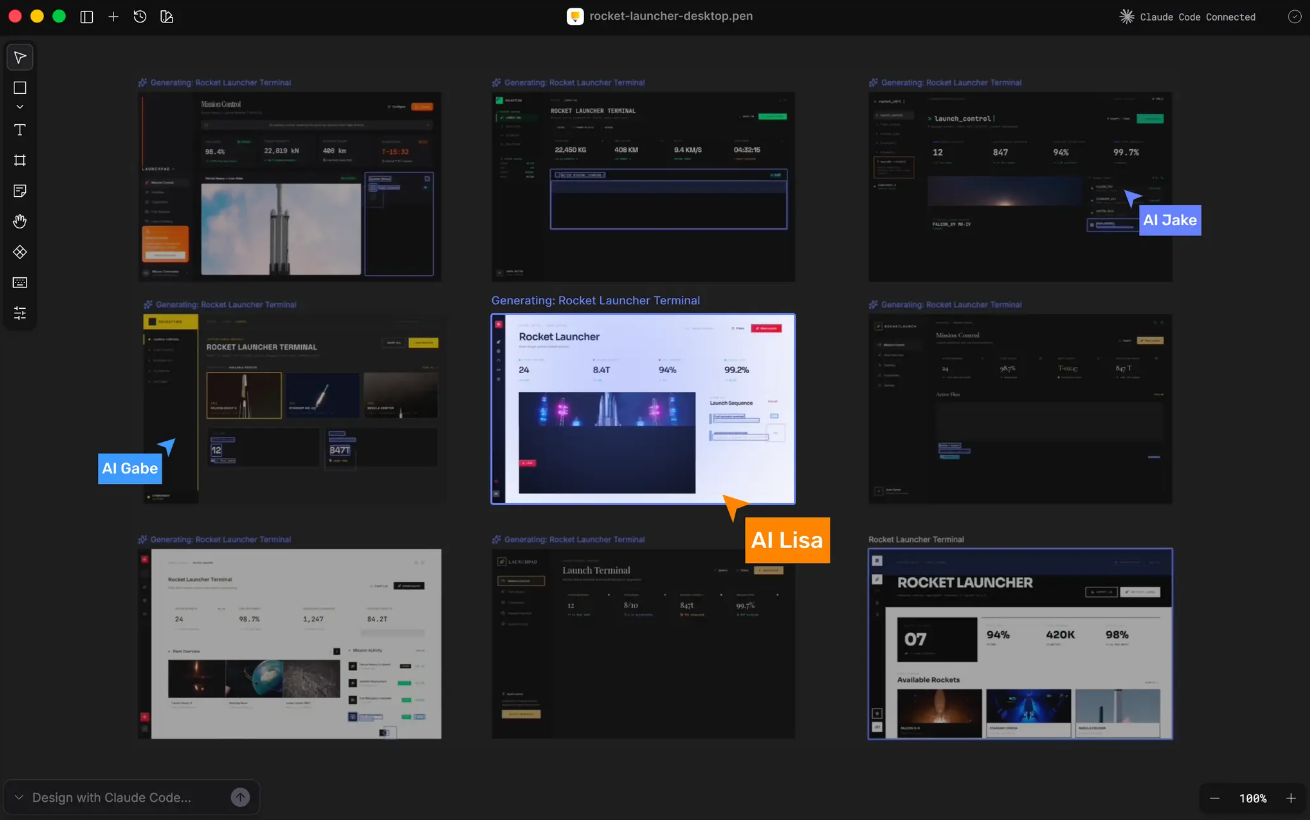
Pencil describes itself as an “agent‑driven design platform” that runs as a standalone desktop app or inside your code editor, giving you an infinite canvas where AI agents can design UI and generate real code side by side. Pencil.dev is unique because it treats the integrated development environment (IDE) as the design environment and uses MCP to keep AI aware of both your designs and your codebase in real time.
Best for: Front‑end engineers and product teams who want an agent‑driven design tool in their IDE that turns prompts and canvases directly into production‑ready React/HTML/CSS
Pricing: Typically freemium; see details on future pricing at Pencil’s official site.
AI approach: Pencil.dev is an agent-driven MCP canvas that lives in your codebase and connects to AI assistants (Claude Code, Cursor AI, etc.) via MCP so they can design and generate code directly inside your IDE.
Pros
- Lives directly in your IDE and codebase, requiring no handoffs or exports
- Agent‑driven, MCP‑native AI workflows that sync with components, tokens, and variables
- Free to try with full AI features
Cons
- Requires separate AI subscriptions and specific IDEs such as Cursor, VS Code, Windsurf, or Antigravity
- Early‑stage product and limited traditional design tooling
Reviews
- G2: Not widely rated yet
- Capterra: Not widely rated yet
Paper
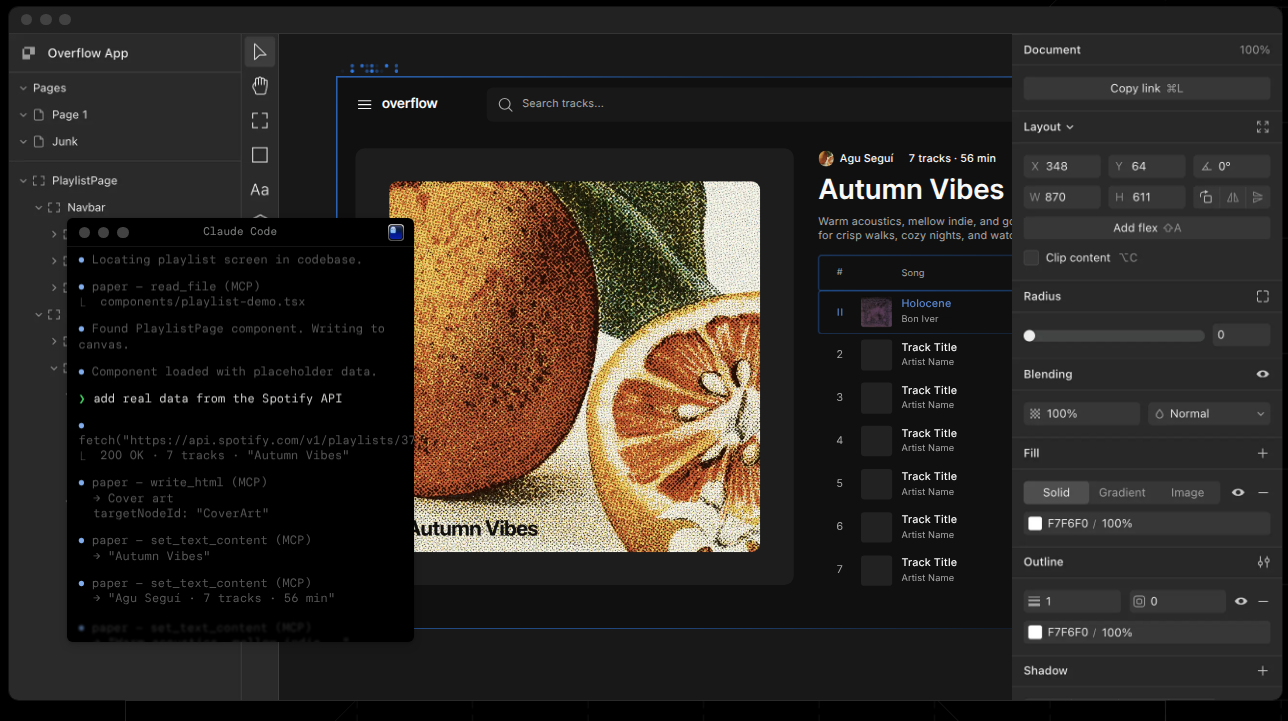
Paper is a modern and powerful design tool, where what you design visually is actual code built on real HTML and CSS rather than a proprietary file format.
It looks and feels like a familiar product design tool, but the actual technology lets you edit DOM elements with real flexbox layouts, CSS properties, and GPU shaders.
Best for: AI‑first builders, designer‑developer hybrids, and small product teams who want a code-native design tool where everything on the canvas is real HTML/CSS and deeply integrated with AI agents via MCP
Pricing: Free with enterprise options available; see details on Paper’s site.
AI approach: Paper is AI‑agentic and code‑native. It offers its own MCP server with dozens of read/write tools, so AI agents can not only read the canvas but also rewrite HTML/CSS, sync tokens, populate content, and generate UI variations directly in the design file.
Pros
- Code‑native HTML/CSS canvas with no translation layer or export-to-code
- Deep MCP integration for AI agents and bidirectional access to the canvas
- Generous free tier for experimentation
Cons
- Open alpha with less mature collaboration and system tooling than Figma
- Best suited to AI‑first builders and designer‑developer hybrids, and not yet mature enough to replace a standard design tool for most teams
Reviews
- G2: Not widely rated yet
- Capterra: Not widely rated yet
Advanced prototyping tools
ProtoPie
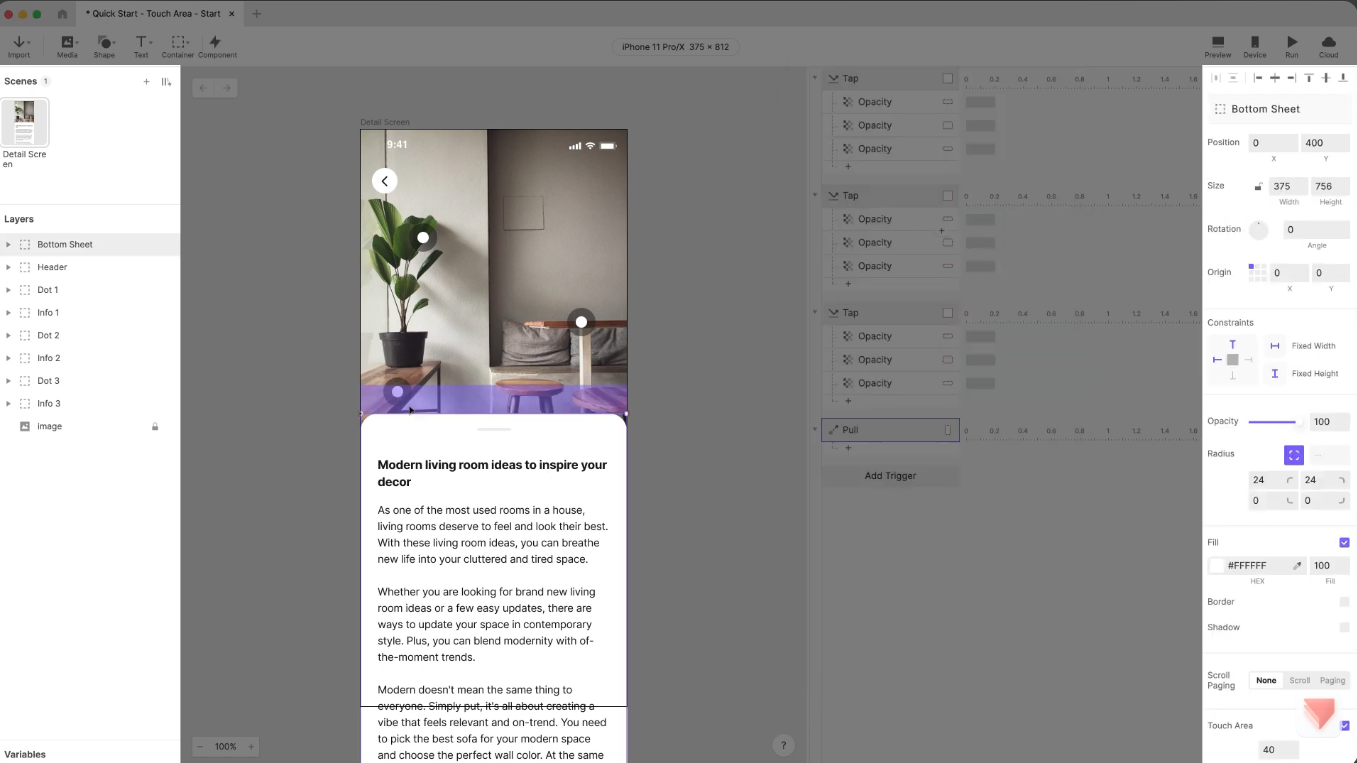
ProtoPie is a dedicated, realistic prototyping tool designed for advanced interactions, multi‑step flows, and sensor‑level behavior on devices.
Best for: Product teams needing high-fidelity interactive prototypes that simulate complex interactions, multi‑device behavior, and logic without code
Pricing: Limited free plan for two projects; see full and updated pricing on ProtoPie’s pricing page.
AI approach: Protopie has no major AI‑first positioning. It’s primarily focused on rich manual prototyping, with any AI support coming via integrations or scripts.
Pros
- Very powerful interaction model that supports conditional logic, variables, and multi‑step animations
- Multi‑device and hardware support, including integrations with sensors and various input methods
- Realistic behavior that’s ideal for pre-development user testing
Cons
- Steeper learning curve for non-technical teams
- Separate tool from your main design platform
Reviews
Principle
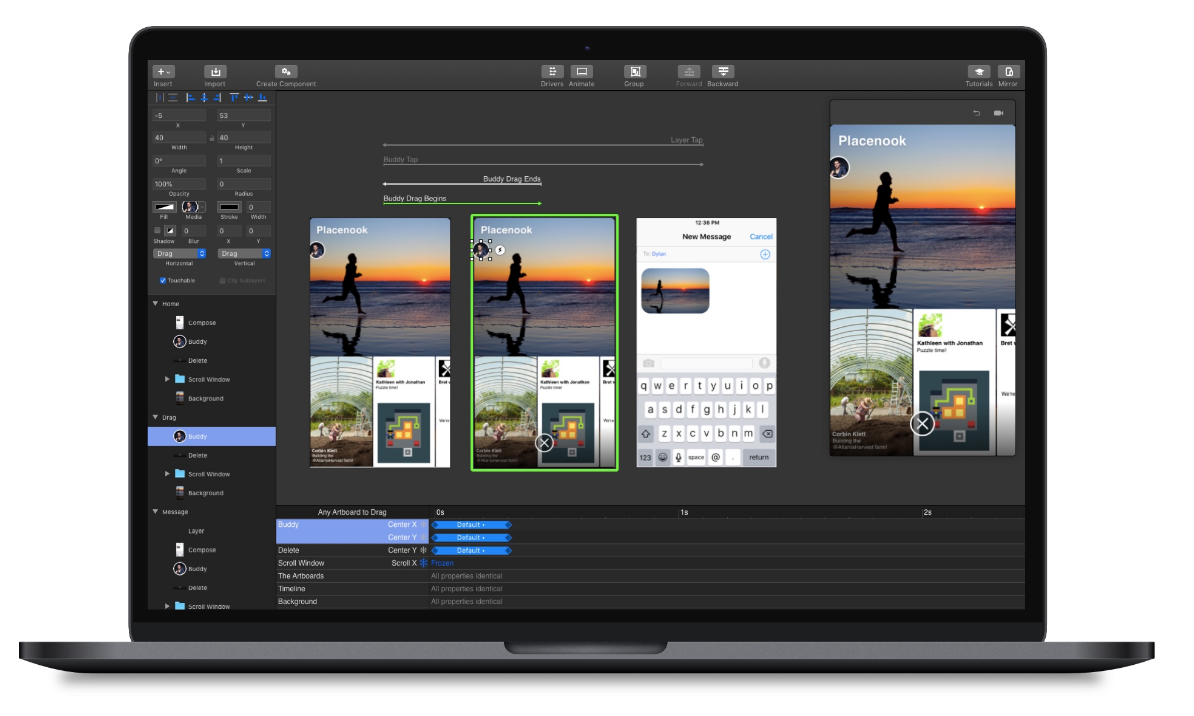
Principle is a macOS app for animating screen‑to‑screen transitions and micro‑interactions, built to make motion design for interfaces approachable. It lets you import static designs from other tools and add movement, timing, and interaction.
Best for: Mac‑based teams who need animation-focused prototypes that emphasize screen transitions and micro‑interactions
Pricing: No free trial or license available; see pricing page for details.
AI approach: Principle has no major AI‑first focus; it’s largely a manual animation and interaction tool.
Pros
- Excellent for motion and transitions that are hard to express in static tools
- Familiar timeline UI that’s intuitive for those with animation and video backgrounds
- Great for highly polished stakeholder demos
Cons
- Mac‑only OS limits contributors and viewers
- Another step in the pipeline that must be synced with the main design tool; each new version must be reimported to the software
Reviews
- G2: 4.3 out of 5 stars
- Capterra: Limited reviews
Axure
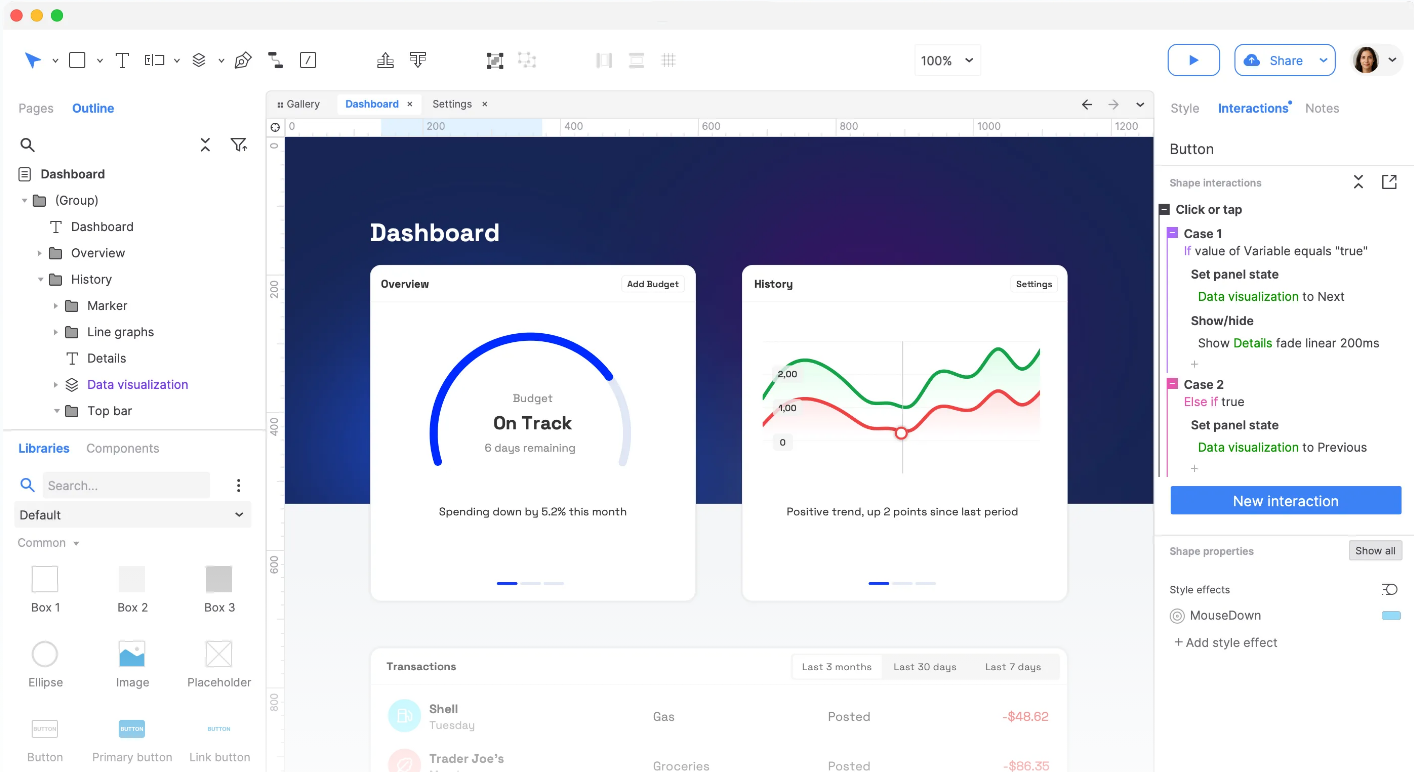
Axure is a long‑standing UX tool for creating high‑fidelity, logic‑driven prototypes with conditional flows, variables, and data. As an enterprise workhorse for complex UX, it generates specs and documentation for developers and stakeholders.
Best for: Enterprise UX teams that need logic‑heavy, documentation‑rich prototypes for complex applications
Pricing: No free full plan; see Axure’s pricing page for per‑user and team pricing.
AI approach: Limited explicit AI positioning; primarily focused on powerful manual prototyping and documentation.
Pros
- Rich logic and conditional flows, including complex conditions, states, and variables (like user input and shopping cart values)
- Built‑in documentation and specs, with annotation and specification sharing
- Good for large, complex projects with many screens, roles, and branching flows
Cons
- Can feel intimidating for new designers due to its power and complexity
- Often more setup and functionality than small, straightforward projects really need
Reviews
Wireframing and early design tools
MockFlow
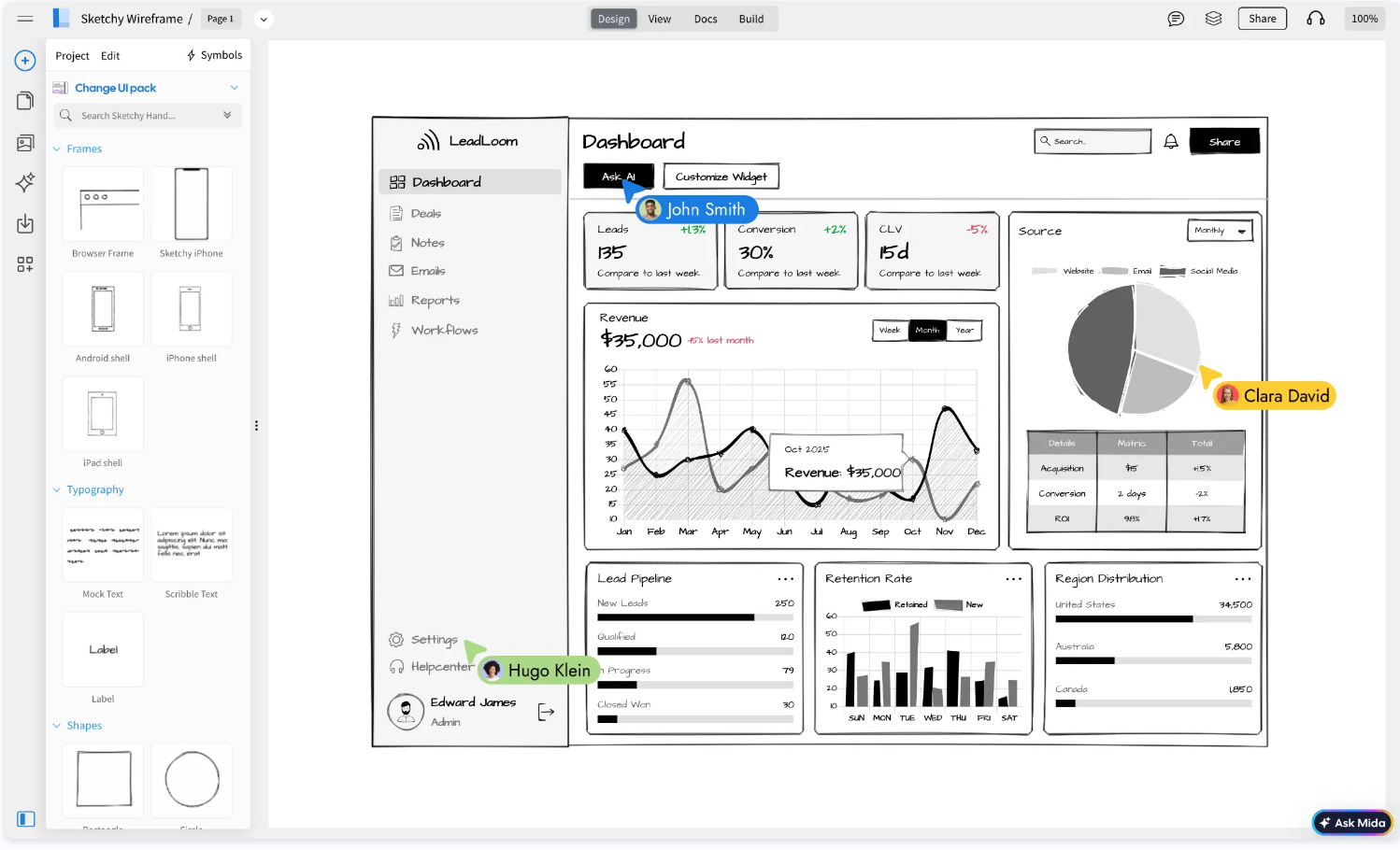
MockFlow is a web‑based tool for rapid wireframing, page flows, and sitemaps, with libraries of UI components and collaborative features for early concepting. It’s ideal for quick, low‑friction wireframes before moving to a full design tool.
Best for: Teams that want a simple, browser-based wireframing tool for quick UI sketches and sitemaps
Pricing: Free/low‑cost plans; see MockFlow pricing page for details.
AI approach: MockFlow has limited AI; mainly classic wireframing. However, it does have AI features centered around brainstorming ideas.
Pros
- Fast, low‑overhead wireframing that’s easy to create and share with others
- Built‑in sitemaps and flows to capture structure early on
- Browser‑based and collaborative without installing heavy desktop apps
Cons
- Not for high‑fidelity design or for dev handoff
- Limited advanced prototyping compared to other prototyping tools
Reviews
Balsamiq
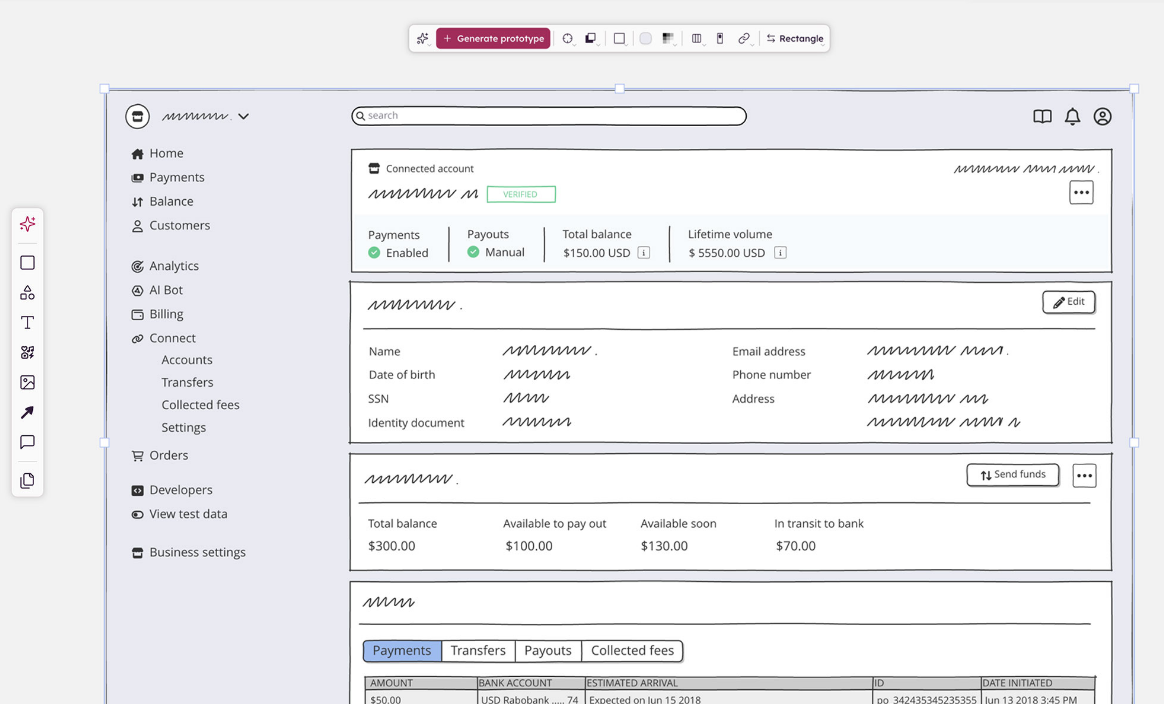
Balsamiq is a wireframing tool that intentionally makes designs look hand‑drawn, so people focus on information architecture rather than visual polish. It offers a library of UI components and simple layout tools for web and app wireframes.
Best for: Teams who want low-fidelity, sketch-style wireframes to keep stakeholders focused on structure and content
Pricing: Paid, with trials and small‑team pricing; see Balsamiq’s pricing page for up‑to‑date details.
AI approach: None or minimal; Balsamiq is intentionally simple and low‑fi.
Pros
- Forces low fidelity and structural thinking to discourage pixel-perfect debates
- Very easy for non-designers to learn
- Good for stakeholder workshops, with simple annotation and changelogs
Cons
- No path to high fidelity within the tool, must recreate designs in another tool after initial low-fi stage
- Limited modern collaboration features
Reviews
How to choose the right Figma alternative
No single tool wins for every team, so the right choice depends on what your workflow actually demands. Before committing, it helps to ask yourself these questions.
What kind of work are you designing for? Full product design platforms like Penpot and Sketch handle complex app UI, design systems, and developer handoff. Website builders like Webflow and Framer are better suited for shipping marketing pages. Wireframing tools like Balsamiq and MockFlow serve early concepting, but expect to move everything into a proper design tool before handoff.
How much does data control matter? If owning your infrastructure is a priority, whether for security, compliance, or vendor independence, self-hosting is a must. Penpot is the only full-featured design platform on this list that supports it. Figma, Framer, Webflow, and most AI-first tools lock you into their cloud entirely.
How does your team collaborate across design and development? Teams spread across time zones, disciplines, and codebases need a tool that outputs into formats developers can use directly, without a costly translation step.
How AI-ready does the tool need to be? There are two major approaches: tools that embed AI features into the UI, and tools that expose MCP servers so AI agents can read and modify design files programmatically. If AI is going to become a deeper part of your workflow rather than just a shortcut, the latter matters more.
Several tools on this list take that second approach. Pencil.dev and Paper are built around MCP from the ground up, making them strong choices for developer-heavy teams who want agent-driven workflows today. Penpot combines an official MCP server with a mature design platform, open file formats, and self-hosting — a harder combination to find elsewhere for enterprise teams that need AI-readiness alongside compliance control and long-term stability.
Make the switch to Penpot today
Most Figma alternatives solve one problem well. Webflow and Framer are great for shipping websites. Sketch is a solid native Mac editor. The AI-first tools speed up early exploration. But none of them address the full set of reasons enterprises leave Figma: closed infrastructure, no self-hosting, per-seat pricing that compounds, and limited control over how AI interacts with your data.
Penpot does. It's open source, self-hostable, built on open web standards, and has an MCP server that makes it genuinely AI-ready. For cross-domain product teams that need design and development working from the same source of truth, it's the only tool on this list built to support that from the ground up.
If you’re ready to get started, sign up for a free account today or speak with our team to find the right plan for your organization.
FAQs
Is Penpot a full replacement for Figma?
Yes. Penpot covers the core features product teams rely on daily, like components, auto-layout, prototyping, and comments. Plus, Penpot adds self-hosting and open file formats that Figma doesn't offer.
How does Penpot pricing compare to Figma?
Penpot has an affordable SaaS editor pricing with caps, while Figma relies on per-seat SaaS tiers that can get expensive as teams grow.
How does AI factor into choosing a Figma alternative?
If you want AI built into the UI tools so they run in the background, Figma, Uizard, and UX Pilot offer these embedded helpers. If you’re leaning toward an open format option that can integrate with your existing AI agents to programmatically read and modify design files, Penpot’s APIs are better suited.
Can I migrate my design system from Figma to Penpot?
Yes, although the process requires teams to export Figma files in Penpot-friendly formats (.JSON or SVG) that can later be imported into your new libraries. Once in Penpot, design systems benefit from more code-aligned tokens and better dev interoperability, and this upgrade can be well worth the time spent migrating the design system. Learn more in our two-part guide.
Related blogs
Read more articles on design tools:
 Carolina Alves Portugal
 Paula Tienza
 Carolina Alves Portugal