A practical guide to the design tokens JSON format
Learn about the design tokens JSON file format and how Penpot works with it.

Design tokens are a way to save and share named design values across your teams. You might name the shade of blue you use for logo text color.brand.logo or a typography composite token that features all the logo’s text properties typography.brand.logo. You can create and store your tokens in Penpot, making them easy to use in your design work.
Penpot natively supports the design tokens standard JSON format by the Design Tokens Community Group. That means that you can import your design tokens into Penpot from any other tool that supports this format. And export your tokens from Penpot into any other tool (or workflow) that supports the design tokens format.
Sometimes, you’ll have something resembling design tokens in another text or JSON format. This is often the case with color palettes you’ve created in another tool. And it can really help if you have a basic understanding of the design tokens format so you can easily translate your existing format into this format. If you have a long list of tokens, this could even be faster than manually creating each token in Penpot. Especially with a small script or a smart use of find and replace!
The design tokens format
JSON has been used to store color palettes since long before design tokens. It's a useful format because it adds structure to text data, and because it’s text-based, it’s pretty human-readable. Even if you’re not a developer, don’t be discouraged! Anyone can edit a JSON file using a text editor, even an online text editor.
Design token properties
A design tokens JSON file is made up of a list of named objects (the tokens), each containing pairs of keys and their values (the properties). Each token looks something like this
"purple": {
  "$value": "#8F0177",
  "$type": "color",
  "$description": "Shade of purple used for the logo."
}
"purple" is the token name. And its properties and values are enclosed in the { curly brackets }.
Properties:
"$value"is the value assigned to that token name.#8F0177is a hex code for purple."$type"is the type of token. Here we’re looking at color tokens, but there are loads more token types available."$description"is a description for that token.
When you’re importing design tokens into Penpot, it’s important that you include each of these properties, otherwise your file won’t import properly. If you don’t want to include a description, leave its value empty like: "$description": "".
Referencing other tokens in your values
One of the most useful features of design tokens is that you can reference other tokens in your token values. To reference a token, you use its name inside { curly brackets }. So if I wanted to reference the purple token in another token, I’d do it like this:
{
  "purple":{
    "$value":"#8F0177",
    "$type":"color",
    "$description":""
  },
  "text":{
    "$value":"{purple}",
    "$type":"color",
    "$description":""
  }
}
Then if I changed the hex code value of purple later on,text will use that same new value automatically. Token names are often more complicated than just {purple} or {text}. Read more about grouping and categorization below.
You can read more about referencing values and doing complex calculations with token values in Penpot in these tutorials:
 Laura Kalbag
 Laura Kalbag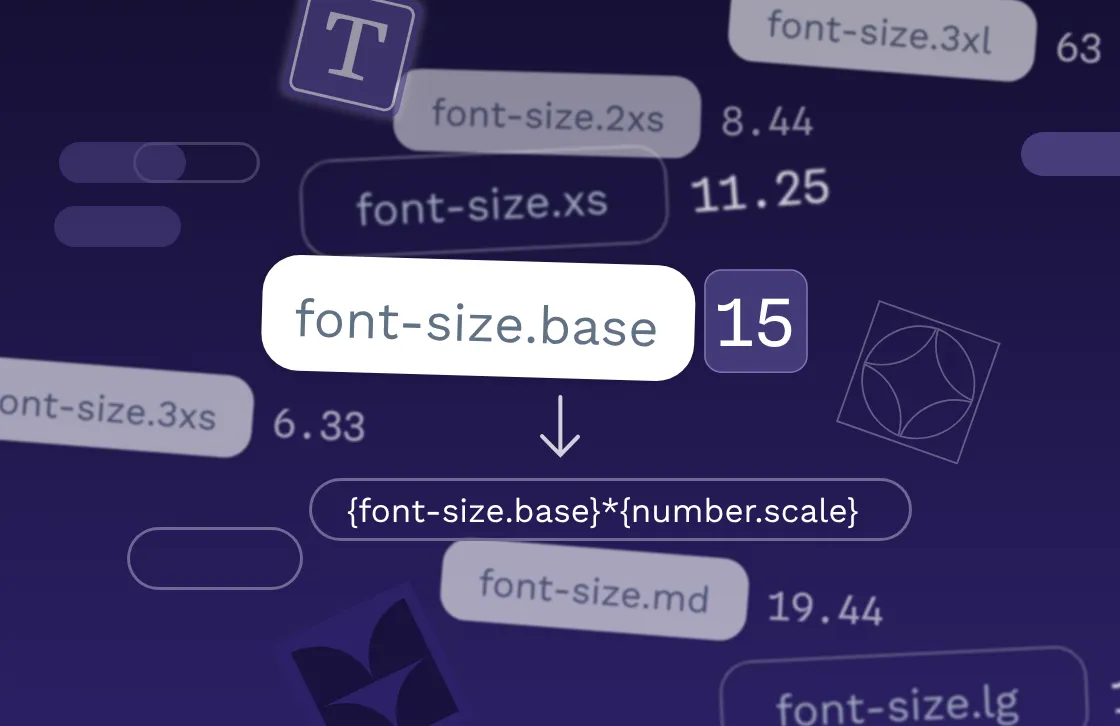
The most basic design tokens file
The simplest possible design tokens file you can import into Penpot might look like this:
{
  "purple":{
    "$value":"#8F0177",
    "$type":"color",
    "$description":""
  },
  "pink":{
    "$value":"#DE1A58",
    "$type":"color",
    "$description":""
  }
}
If you save this JSON text as a file named colors.json, you can import it into Penpot from the bottom of the Tokens panel, and you’ll end up with tokens you can use in your designs:
By default, Penpot will use your filename as the tokens’ set name.
Design token sets vs groups
Token sets are a way to group your design tokens. You can use them to organize your tokens, for example with sets like base, semantic, and component. You can set token sets to active or inactive in Penpot, and use them with themes. Don’t confuse token sets with token groups!
Token groups are a way to categorize your tokens through their names. So you could have two tokens called blue, but one is included in the text group, and one is included in the background group:
"text": {
    "blue": {
      "$value": "rgb(28, 23, 69)",
      "$type": "color",
      "$description": ""
    }
  },
  "background": {
    "blue": {
      "$value": "rgb(182, 197, 225)",
      "$type": "color",
      "$description": ""
    }
  }
In the full name of the token (the name you’d use in Penpot or when referencing that token in another token’s value), groups are separated by a dot (.). So the blue token in the text group is text.blue, and the blue token in the background group is background.blue ({text.blue} and {background.blue} for references). Penpot uses these group names to organize your tokens in the Tokens panel:

background.blue token is applied to the board’s fill color in the Design panel.If a token set name isn’t defined in the $metadata (we’ll cover $metadata shortly!) then Penpot will interpret the parent groups as token groups:
{
  "Brand":{
    "blue":{
      "$value":"#1A05A2",
      "$type":"color",
      "$description":""
    },
    "purple":{
      "$value":"#8F0177",
      "$type":"color",
      "$description":""
    }
  }
}
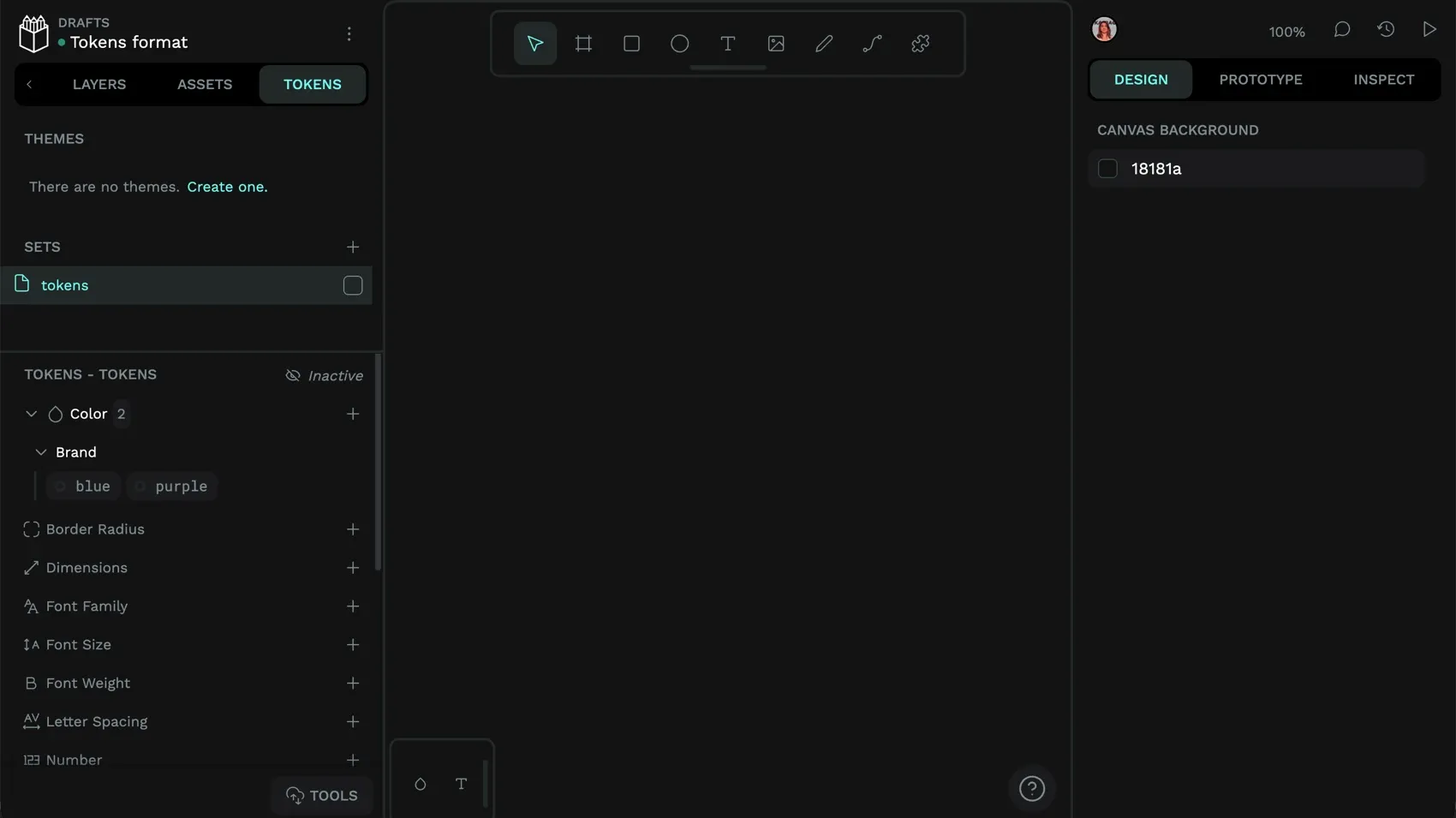
If you saved this JSON file as tokens.json and import it into Penpot, you will end up with two color tokens, named Brand.blue and Brand.purple in a default set named tokens, matching the file name.
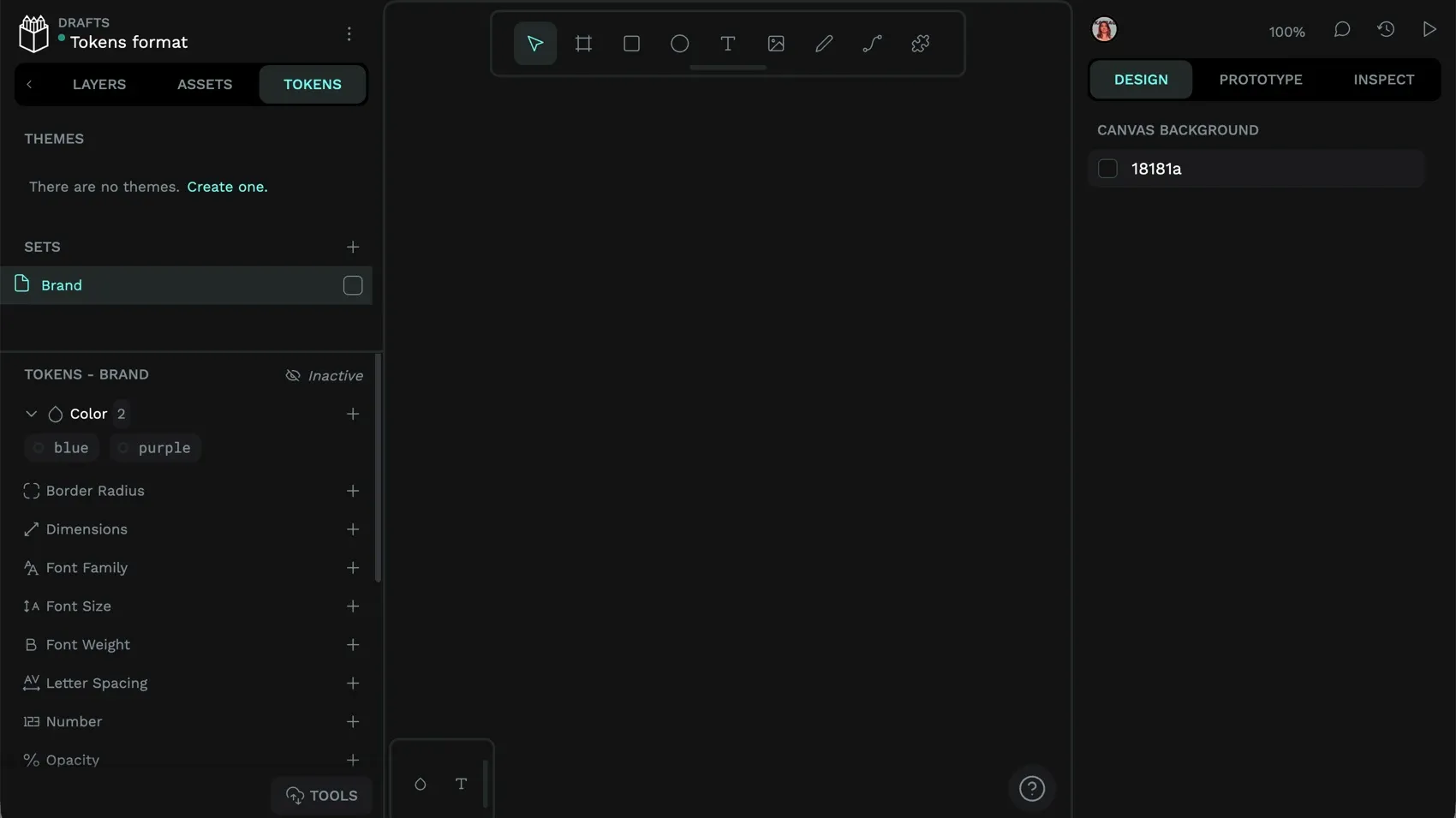
But if you add in $metadata with tokenSetOrder, Penpot will recognise the Brand object as a set:
{
  "Brand":{
    "blue":{
      "$value":"#1A05A2",
      "$type":"color",
      "$description":""
    },
    "purple":{
      "$value":"#8F0177",
      "$type":"color",
      "$description":""
    }
  },
  "$metadata":{
    "tokenSetOrder":[
      "Brand"
    ]
  }
}
In this JSON file, you will get a token set named Brand containing two color tokens: blue, and purple.
Token themes
A more advanced use of token sets is to create tokens with the same name in multiple sets. Then assign different values to those tokens for different contexts, like assigning a text color token with the value of #000 (black) in light mode and #FFF (white) in dark mode.
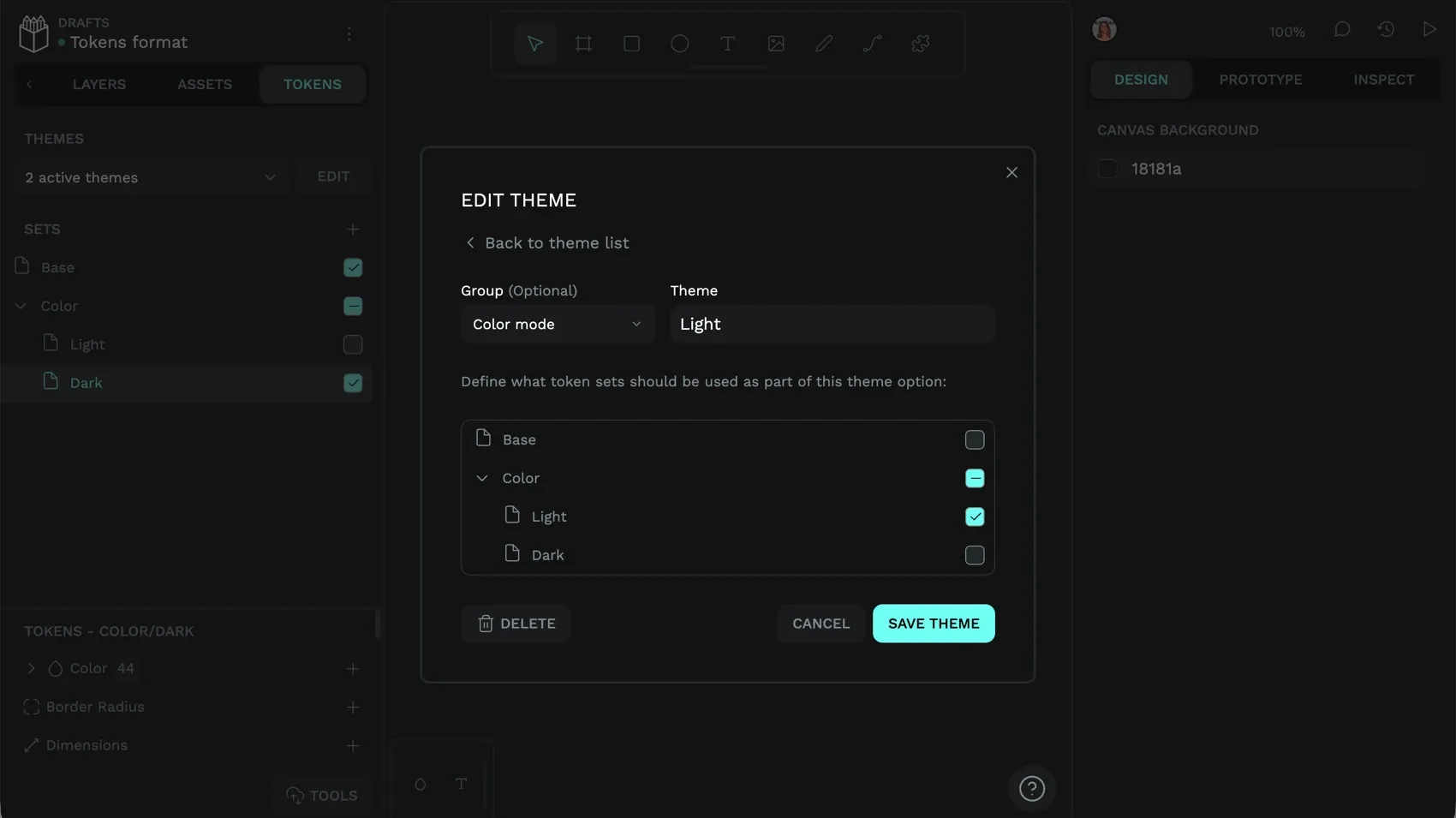
You can then combine active and inactive sets to create themes, and categorize themes into groups, allowing different combinations of themes to be active and inactive simultaneously.
In the design tokens JSON file, $themes have their own object which lists each theme:
"$themes":[
  {
    "id":"bac549eb-0fab-807a-8007-7de84218c5ea",
    "name":"Light",
    "group":"Color mode",
    "description":"",
    "isSource":false,
    "selectedTokenSets":{
      "Color/Light":"enabled"
    }
  },
  {
    "id":"bac549eb-0fab-807a-8007-7de85116a975",
    "name":"Dark",
    "group":"Color mode",
    "description":"",
    "isSource":false,
    "selectedTokenSets":{
      "Color/Dark":"enabled"
    }
  }
]"id": a unique ID for that theme to prevent theme clashes."name": the human-readable theme name"group": the theme’s group"description": an optional description for the theme"isSource": whether the token set is a source set"selectedTokenSets": a list of token sets enabled in the theme
Not all these properties are necessary for a theme, you can import the following $themes JSON into Penpot without any errors:
"$themes":[
  {
    "id":"fe66a130-91f4-8030-8007-7ef76b6ee48c",
    "name":"Always-on",
    "selectedTokenSets":{
      "Global":"enabled"
    }
  }
]
Design token metadata
If you export a tokens file from Penpot, you’ll notice an object at the end of the file that doesn’t contain any tokens called “$metadata”. The metadata provides additional information about token sets for Penpot:
"tokenSetOrder": a list of token sets in the order they should be loaded. (Important if the values of one set need to override the values of another!)"activeThemes": which themes should be active by default."activeSets": which sets should be active by default.
Once you’ve imported your tokens, you can change token set order and active themes and sets from the Tokens panel.
For the example above using light and dark mode, the tokens $metadata could look like this:
"$metadata":{
  "tokenSetOrder":[
    "Base",
    "Color/Light",
    "Color/Dark"
  ],
  "activeThemes":[
    "Global/Always-on",
    "Color mode/Dark"
  ],
  "activeSets":[
    "Color/Dark",
    "Base"
  ]
}
A forward slash (/) in a token set or theme name indicates a group. For example,Color/Light is the Light tokens set in the Color group, and Color mode/Dark is the Dark theme in the Color mode group.
Note that the lists of sets in the tokenSetOrder, activeThemes, and activeSets are provided as an array (inside [ square brackets ], not { curly brackets }). And they’ll need to be formatted like this to import correctly into Penpot.
Common mistakes and errors in JSON design tokens files
If you’re unfamiliar with code, or even just JSON formatted files, here are some gotchas to avoid when working with design tokens.
Syntax errors
Every ”, :, {, }, [, ] and , is there for a reason! These structural characters (delimiters and separators) are what make the data machine-readable, and its structure defines the hierarchy and relationships between objects. If you have any of these marks in the wrong place, your file might give you an error, or Penpot might show an error when you try to import the file. So often it’s a missing , in a list (or including a , at the end of a list). Or an extra/missing { as a result of copying and pasting. Syntax highlighting in a code editor can help you locate the source of the problem, or an online JSON validator.
Missing metadata
As I mentioned above, you don’t need to include the $metadata object in your design tokens files. But if your sets are missing, and all your tokens are grouped instead, you need to add the $metadata for tokenSetOrder so Penpot can tell the difference between a set and a group.
Don’t be afraid to play with your tokens file!
Hopefully this tutorial has given you a clearer picture of the design tokens format and how Penpot works with it. If you’re a designer, you might not ever look at the design tokens file, but I always find it helps to understand the medium I’m designing for a little better. You might also find it easier to reorganize your design tokens from a text editor.
You can already remap your tokens when renaming them from inside Penpot, so I’d avoid doing this inside the file, where you might lose the connection to any tokens you’ve applied to design elements. But tasks like moving tokens from one set to another, changing set names, and comparing sets side-by-side are all easily accomplished in a text editor. You can also export your tokens from Penpot, complete these operations, and reimport your file into Penpot without breaking your tokens’ connections to your design elements, as long as you haven’t renamed your tokens.
Remember, you can always save a version of your Penpot file before playing with your tokens so it doesn’t matter if you break anything!
Related Blogs
We’ve got plenty more tutorials about design tokens and Penpot. Here’s some you might find interesting:
 Laura Kalbag
 Laura Kalbag
 Laura Kalbag