How to self-host Penpot: A technical implementation guide
Once you've decided to bring Penpot into your own infrastructure, the next step is making sure your instance runs smoothly, stays secure, and scales with your team. Learn how to self-host Penpot in your infrastructure.

Setting up a self-hosted design platform requires careful planning and the right technical foundation. Fortunately, Penpot's installation follows good deployment and configuration practices, making it easier and safer. Once you've decided to bring Penpot into your own infrastructure, the next step is making sure your instance runs smoothly, stays secure, and scales with your team.
This guide walks through the technical requirements for self-hosting Penpot, from choosing your deployment method to configuring team access and maintaining performance over time. Whether you're managing a Docker setup for a small team or deploying across enterprise infrastructure with Kubernetes, these best practices will help you launch confidently and avoid common pitfalls.
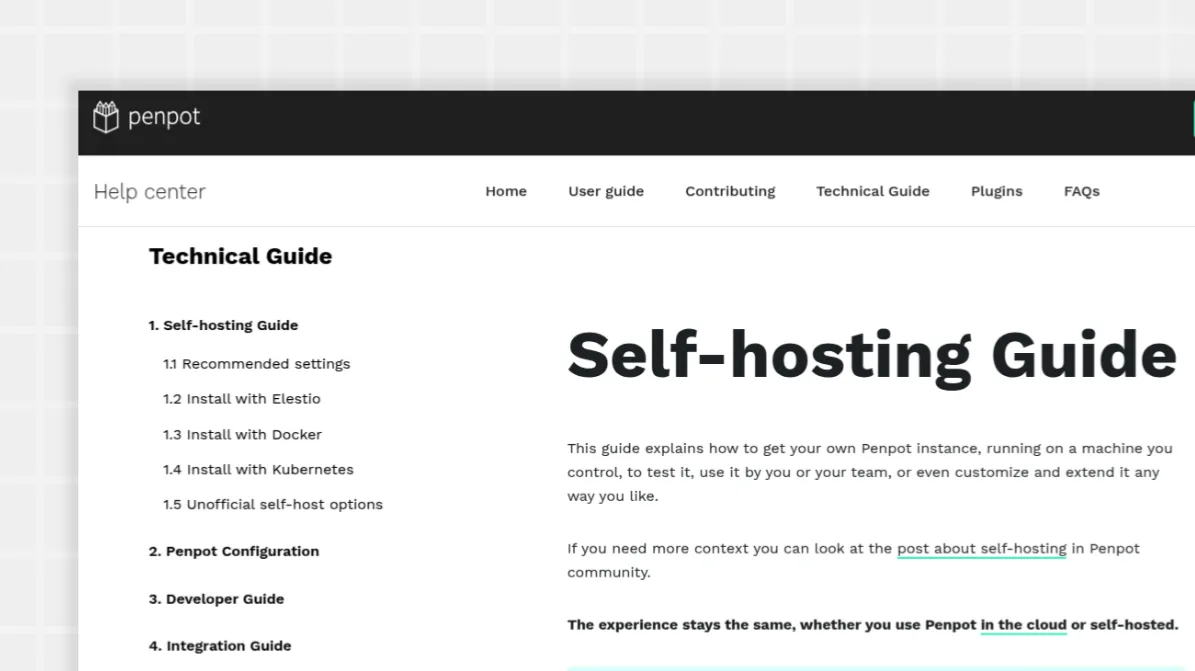
Choose your deployment method
Setting up self-hosted Penpot starts with selecting the right installation method for your company's infrastructure and security policies. Whether you need air-gapped deployment, full control over your data, or specific privacy configurations, the right method depends on your security requirements.
Your main deployment options include:
- Docker and Docker Compose deployment
- Kubernetes via Helm chart, or platforms like SUSE’s Rancher and Red Hat’s OpenShift enterprise solution
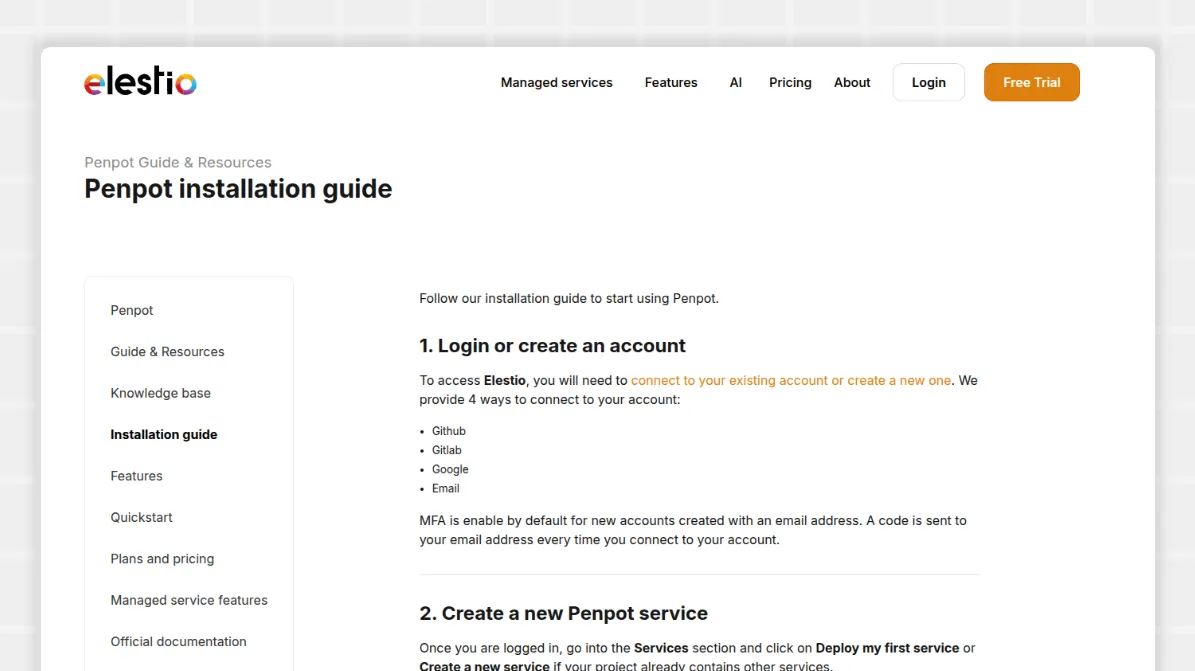
- The partner platform Elestio
Each of these has its own technical requirements, onboarding, and costs. Research each fully before you decide. Questions to ask include:
- Do we have experience managing Docker installs, or would a managed service like Elestio save us time and hassle?
- Will Penpot be used by a small group or scaled across multiple departments?
- Does our setup need to support backups, monitoring, or integrations with identity management (like LDAP or SSO)?
- Is our infrastructure cloud-based, hybrid, or entirely on-premises, and do we need professional support or easy upgrades?
Our community has also shared some options that work for them — but these aren’t official, and your mileage may vary.
Plan your infrastructure requirements
Once you've selected a deployment method, the next step is understanding what resources your Penpot instance actually needs. Getting this right from the start prevents performance issues and helps you scale smoothly as your team grows.
The key to planning effectively is understanding where Penpot does its work. Penpot's architecture places processing power on the client side, not the server. Since Penpot runs heavily in the browser, end-user laptops need solid performance and low network latency to deliver smooth design experiences. We recommend using the latest version of Chrome to get the most out of Penpot's capabilities.
This client-side architecture has a major upside for infrastructure planning: Your server doesn't need massive resources. The server handles data storage and coordination, but all the heavy lifting (rendering designs, running interactions, managing complex files) happens in the browser.
When it comes to planning database sizing, you’ll want to consider the number of files created and edit interactions logged, not total user count. This is because organizations often have a lot of users who operate in read-only mode, like stakeholders reviewing mockups or project managers checking progress. These users have minimal impact on database growth, so a team with 50 users, where only 10 actively create and edit files, will have a smaller database footprint than a team of 20 who are all editing.
Plan for elastic database storage that scales based on actual design activity. Start conservatively and monitor usage patterns during your first few months. Most teams find their storage needs grow predictably once they understand how many active designers they have versus read-only users.
Configure your Penpot instance
Before you deploy, spend a moment exploring Penpot’s configuration options. These settings let you tailor authentication, storage, networking, and security to match your infrastructure. Most teams focus on a few key areas:
- Authentication and registration options: Email/password, SSO and OAuth providers (Google, GitHub, GitLab), OIDC, and LDAP
- SMTP and email settings: Invite flow, verification emails, and logging options for testing environments
- Storage and database setup: PostgreSQL settings, filesystem or S3-compatible object storage, and file data storage backends
- Networking and public access: PENPOT_PUBLIC_URI, reverse proxy details, secure cookie settings, and CORS
- Specialized environments: Air-gapped mode, demo environments, autosave behavior, and telemetry controls
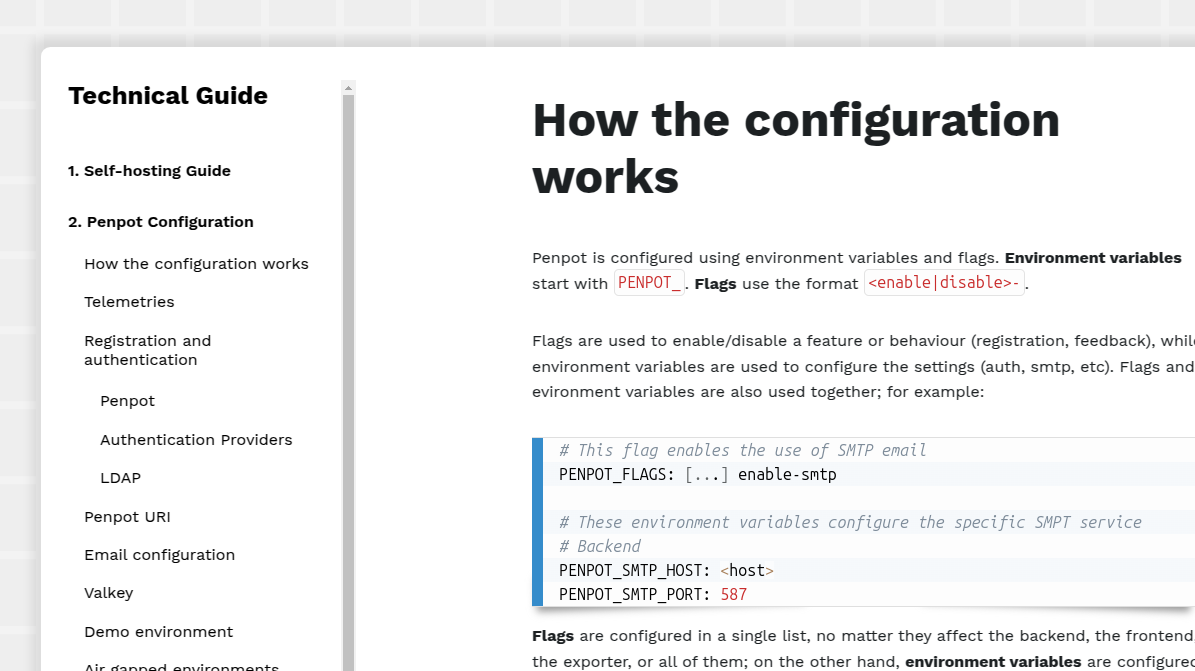
These categories cover most production needs, but Penpot also includes more advanced options like access tokens, webhooks, and additional flags for fine-tuning the user experience. You can explore every option in our configuration documentation.
We also provide a CLI for server-level administration tasks, making it easier to automate maintenance and manage your instance over time.
Set up team access and security
You’ll want to spend time before the migration to plan how each team or role will interact with Penpot and its design files. This will save you time by avoiding unnecessary permissions or locking out someone who needs access to important projects.
Team organization and ongoing permissions
Penpot supports unlimited users, giving you any number of team setups and permissions configurations to try out. Things to consider when assigning based on role or team level include:
- Role-based access control (RBAC) implementation: Will each person have what they need to complete day-to-day work tasks? A designer will need different permissions than a stakeholder.
- Integration with existing identity providers like SSO: How do we incorporate Penpot into our secure workflows? Are there tools we do or don’t want to connect it to directly?
- Guest access policies for external collaborators: How should stakeholders and contractors access Penpot? What commenting or editing permissions should they have?
- Regular access reviews and deprovisioning procedures: How often do we review permissions, and what happens when someone leaves a project or team? Do clients and employees have the same deprovisioning process?
Project organization
With these questions answered, you can move on to project organization. Make a plan for every new campaign or product, since a unique team will be assigned to each. Templates can speed up the process, giving you a basic organizational flow for internal projects, external client jobs, etc. Assign the following in advance so you can create the correct permissions and workflows later in the platform:
- Your team structure alignment with hierarchies for who reports to whom (and who owns what)
- Which libraries will be shared, and how the design system will be governed
- Version control and approval workflows
- Backup and recovery procedures for critical projects

Currently, you’ll need to configure your team roles and permissions manually upon initial setup. However, you can export your design files, shared libraries, and assets from the online version of Penpot and import them into your self-hosted environment, which helps preserve project structure and content.
Security details
This is also where your IT or security department will develop general security policies, if they aren’t already in place. Consider things like:
- Password requirements and multi-factor authentication
- Network access restrictions and IP safelisting
- Data classification and handling procedures
- Incident response plans for security events
In most cases, Penpot’s self-hosting can be implemented seamlessly into existing security protocols, especially if you’re already using Penpot SaaS or a similar design tool with teams, stakeholders, and clients.
Maintain your self-hosted instance
Success is much easier to achieve when you set up update routines, organize access thoughtfully, and keep an eye on your system before any issues pop up. A team using a managed solution or a simple Docker command can start collaborating in real time within the same day. Using existing login credentials and permissions smooths out the process even more and lets teams focus on design work instead of logistics.
These best practices help your team avoid surprises and keep everything running smoothly as they make the transition.
Keep your instances updated
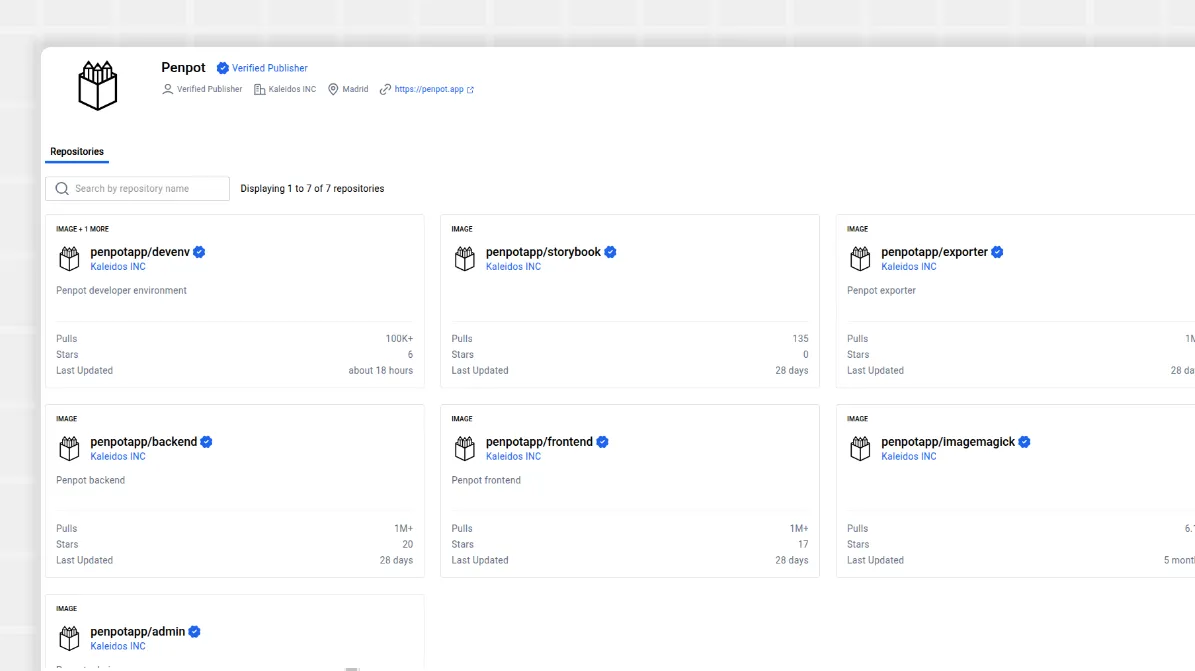
Staying current with Penpot releases allows you to enjoy the latest features, but it’s also a core requirement to safeguard your design platform and keep performance sharp. Enterprise teams should make it a habit to follow Penpot’s release news on GitHub (for SaaS), Dockerhub (for on-premise), and our community forums. When a new version drops, take a moment to dive into the release notes. These highlight new features, as well as any security impacts.
Experienced admins know the golden rule: Always test updates in a safe environment before giving your teams access to them. A staging server mirrors your live setup and helps surface any surprises before they reach the rest of your team. If you schedule updates during off-hours, your designers will only have to hear about the exciting new features and not any glitches you experienced during setup.
Docker-based deployments make keeping up with Penpot refreshingly straightforward. With just a few commands, you can pause your containers, pull down the latest images, and spin things back up. And your persistent data stays right where it belongs!
Many teams prefer to pin deployments to a specific Penpot version, only moving forward after a deliberate review. This practice, along with keeping a backup handy and documenting your custom tweaks, ensures your team can update with confidence and recover quickly if something unexpected happens.
Even with this cautious approach, you might notice that self-hosted Docker images arrive a few days after new Penpot releases are announced. This delay is intentional. Despite conducting thorough testing before each release, we publish Docker images slightly later to ensure release quality and catch any issues that surface in the initial rollout. This means self-hosted instances benefit from extra stability testing.
Manage user access and roles
User management helps you manage productivity without sacrificing security. Penpot’s flexible roles system helps organizations shape permissions based on how their teams work.
Giving everyone precisely the access they need (and nothing extra) is the most straightforward way to minimize risk. For example, marketing team members might need full access to brand asset libraries but only view access to product development projects. Developers might need read-only access to design files but full access to inspect code and properties.
Don’t set and forget, though: Roles and team rosters change over time, so check in regularly to remove inactive accounts and adjust permissions for those moving teams or projects. For enterprises, connecting Penpot to your SSO provider keeps account management in sync with the rest of your infrastructure.
Automated provisioning and deprovisioning can be a lifesaver for bigger teams. And if something does go awry, make sure you’ve got a plan for admins to recover access if needed. Create a backup admin account to stash away and save hours of downtime if an incident occurs.
Monitor performance and storage
Smooth design experiences rely on proactive system care. Keep a close eye on performance metrics (server CPU and memory, database speeds, bandwidth use) to prevent slowdowns before they start. Many organizations put alerts in place to flag when something starts running hot, which is especially helpful as your user base and design library expand.
And since storage isn’t infinite, healthy growth means actively tracking how much space your Penpot instance is using. You’ll also want to incorporate routine backups and decide early how to handle inactive projects (through archiving, storage quotas, or both). The right balance of these activities lets you keep everything running fast and worry-free.
As your team tackles bigger, more complex files, performance tuning becomes essential. If a single design file starts feeling unwieldy, consider splitting it into logical sections or encouraging your team to optimize image assets. Training sessions or internal guides on “design file health” can make a world of difference, turning power users into support allies for the entire organization.
Get started with self-hosted Penpot
Self-hosting Penpot gives organizations full control over their design operations with a foundation that’s stable, secure, and built to last. Because it’s open source, you keep access to your tools and data no matter how vendors or markets shift.
We offer two ways to self-host Penpot, depending on your team’s needs:
- Professional (Free) — For individuals and teams with their own technical infrastructure. Includes unlimited users, files, and all core design and prototyping features. Community-supported, 100% open source.
- Enterprise ($950 / org per month) — For security- and compliance-focused teams. Includes everything in Professional, plus dedicated deployment support, enterprise SSO, certified plugins, guaranteed response times, and optional add-ons like audit logs, HIPAA support, and air-gapped deployment.
Both options give you the same powerful design platform and freedom to scale without limits. The difference is how much support, compliance, and customization your organization requires.
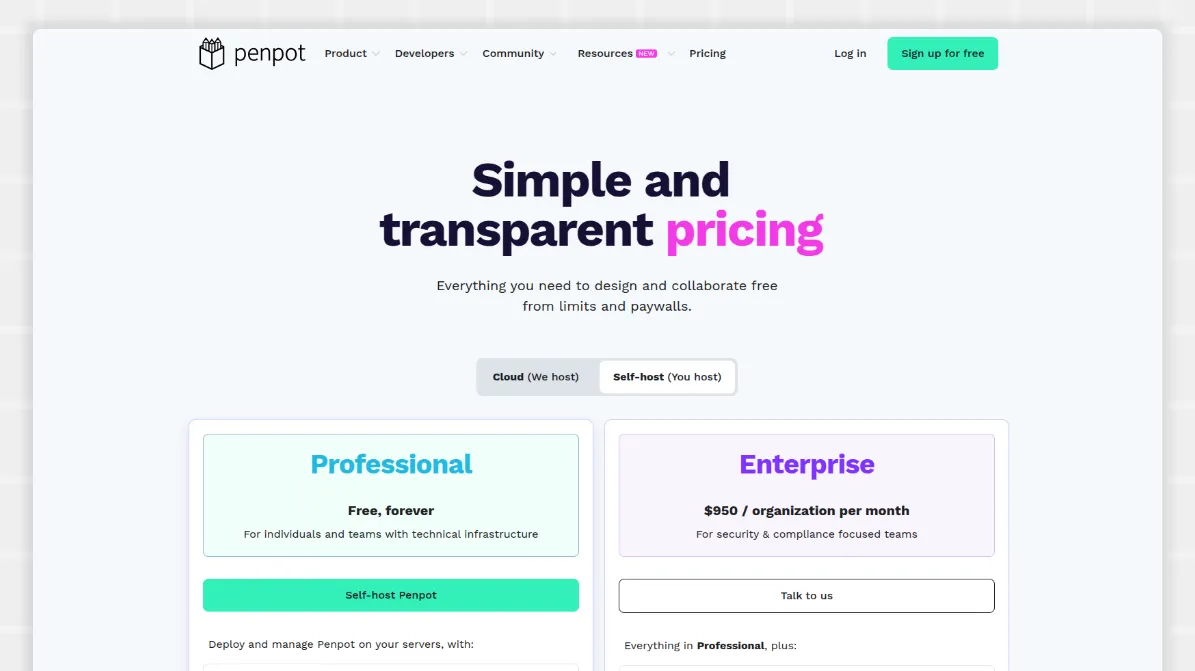
Ready to take control of your design infrastructure? Sign up for a free Penpot account to explore the platform, or talk to us about Enterprise self-hosting to unlock advanced security and support for your team.
Penpot Self-host FAQs
If you're considering self-hosting in Penpot and have any questions, you may find the answers here:
- What's required to self-host Penpot? Our deployment guide covers detailed requirements, including storage, memory, and network specifications. Read our user guide and follow instructions for Docker, Kubernetes, Rancher and all our other provide options.
- What security certifications do we support? Enterprise supports GDPR compliance, and Penpot has been successfully deployed on organizations that require other certifications like SOC2 and HIPAA.
- Is there a supported service for self-hosted Penpot? Yes. If your organization or enterprise needs dedicated professional support for your self-hosted deployment, check out our Self-Host Support plans
Related articles
 Paula Tienza
 Carolina Alves Portugal